Log in with 2FA
Logging in to Inventory with only your nick and password is no longer possible. To access Inventory you must now set up Two-Factor Authentication (2FA) and use it every time you log in.
Access is now linked to a personal account: every user needs their own email address. Generic or shared credentials (for example, a single nick and password used by several people) are no longer allowed.
What is Two-Factor Authentication?
Two-Factor Authentication (2FA) adds a second verification step to your login. Besides your credentials, you will need a 6-digit code that is generated by an authenticator app on your phone (or browser). The code changes every few seconds, so nobody can access your account just by knowing your password.
You only need to set it up once for your Travelgate account. If you already use 2FA on the Travelgate platform, you can use the same authenticator app for Inventory without setting it up again.
Before you start
- Use your own personal account. Each person needs an individual account linked to their own email address. If several people were sharing one nick and password, each of them must now have their own email.
- Install an authenticator app on your mobile phone if you don't already use one for Travelgate. We recommend Google Authenticator, but any of the following works:
- Mobile apps:
- Browser extensions:
How to set up 2FA in Inventory
If you already use 2FA with your Travelgate account, skip the setup below and follow the steps in How to log in once 2FA is set up.
-
Go to the Inventory login page.
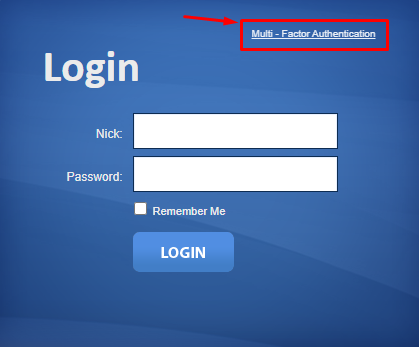
Open Inventory. You will see the usual Login form with the Nick and Password fields.
-
Click on "Multi - Factor Authentication".
Do not fill in the Nick and Password fields. Instead, click the Multi - Factor Authentication link at the top right of the login box.
-
Log in to Travelgate.
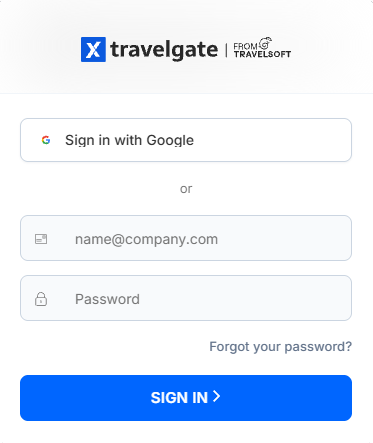
You will be taken to the Travelgate login screen. Your Inventory access uses a personal Travelgate account registered with the email address you provided to us. Sign in with Google or with that email and your Travelgate password.
If you have never used your Travelgate account and don't know your password, and you are not signing in with Google, click Forgot your password? to request a password reset.
-
Scan the QR code.
A QR code will be displayed. Open your authenticator app, choose the option to add a new account and scan the QR code. Then type the 6-digit code that the app shows into the field below the QR code and press the arrow button.
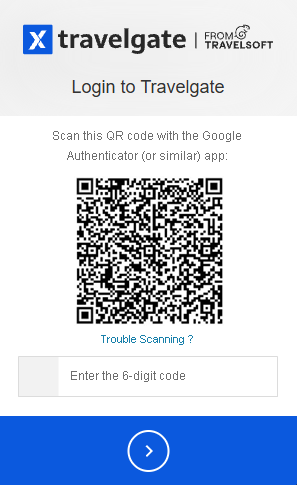
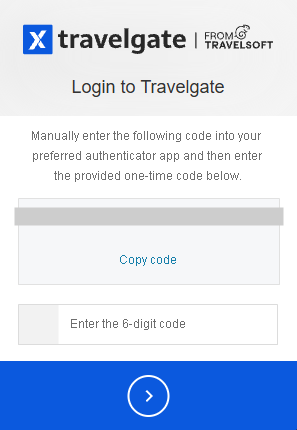
If you cannot scan it, click "Trouble Scanning?" and type the key shown on screen into your authenticator app.
-
Setup complete.
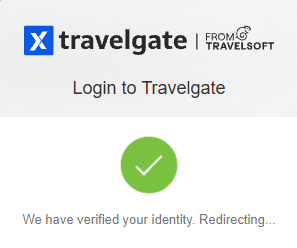
Once the code is accepted, a confirmation screen will appear and you will be redirected to Inventory.
How to log in once 2FA is set up
Once 2FA is configured for your Travelgate account, use the code from your existing authenticator app to access Inventory. You may also be asked to sign in to your Travelgate account. If you are already signed in with Google in your browser, you do not need to sign in with Google again.
-
Go to Inventory.
-
Click on Multi - Factor Authentication (don't fill in Nick and Password).
-
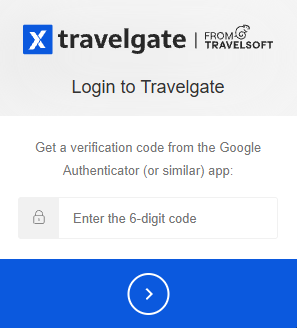
If prompted, sign in with Google or your Travelgate email and password. Open your authenticator app and enter the 6-digit code shown for Travelgate.
-
Press the arrow button to access Inventory.
The 6-digit code is renewed every few seconds. If it is about to expire, wait for the next one before typing it.
Common issues
"The credentials have expired. Looks like something went wrong. Please try logging again from the application."
This usually happens when the clock of your computer or phone is not synchronized. Authenticator apps rely on the exact time to generate valid codes, so if your device time is out of sync, the code is considered invalid or expired.
Make sure your device clock is set automatically:
- Windows: Settings > Time & Language > Date & Time and enable "Set time automatically".
- macOS: System Preferences > Date & Time and check "Set date and time automatically".
- Linux: Make sure ntpd or systemd-timesyncd is enabled, depending on your distribution.
- Mobile phone: enable automatic date and time in your phone settings.
Then try logging in again from Inventory.
I changed my phone or lost access to my authenticator app
Ask an Admin or Owner in your organization to reset your 2FA method, then configure it again. See how to reset your 2FA.
Related
For general information about 2FA on the Travelgate platform, see Two-Factor Authentication (2FA).