Add Rate
How to Create a New Rate
Follow these steps to create a new rate:
-
Navigate to the Inventory top menu and select SetUp.
-
Select a connection (Client + Provider) and hotel.
-
Click the + Add Rate button to open the rate configuration form.
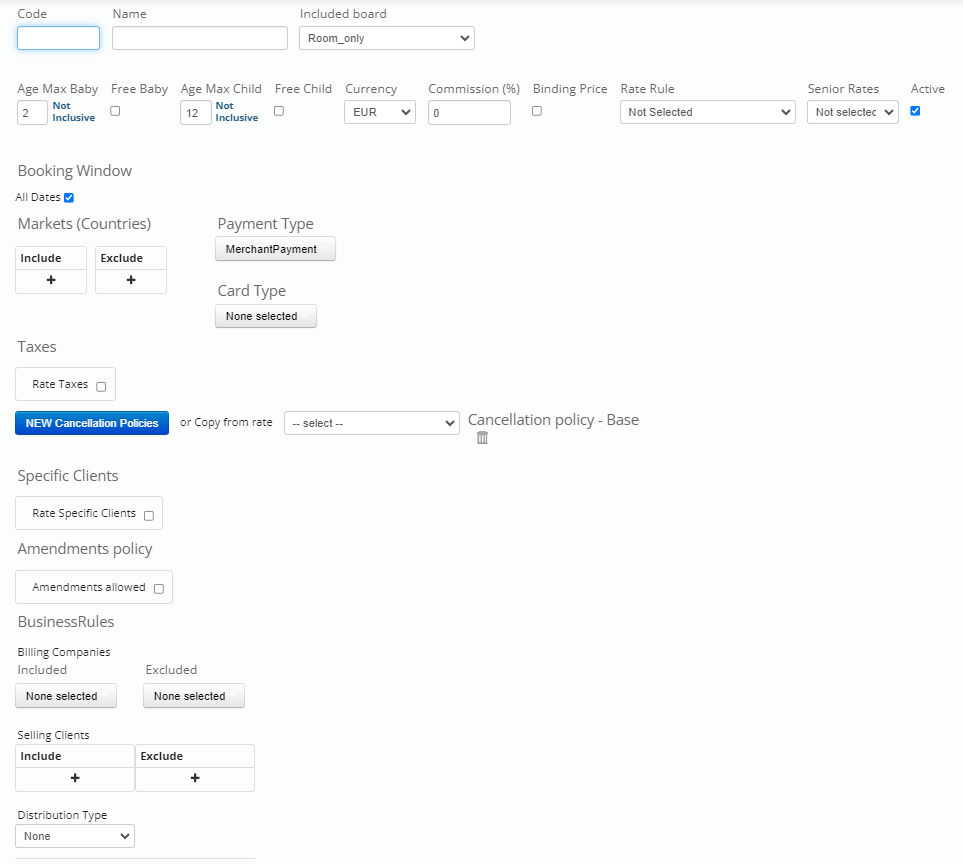
Rate Configuration Fields
General Rate Information
- Rate Code: A unique internal identifier for the rate.
- Rate Name: The descriptive name of the rate.
- Included Board: Specify the meal plan included.
- Age Groups and Free Child: Define age ranges for infants and children to ensure correct pricing calculation.
- Currency: Select the currency in which the rate will be loaded and sold.
- Commission (%) and Binding: Define the applicable rate commission percentage and binding option if applicable.
- Rate Rule and Senior Rates: Configure Rate Rules or Senior Rates if applicable.
- Active: Enable or disable the rate availability.
Booking Window
Select "All Dates" or define a specific booking window period for that rate.
Markets (Countries)
Define which geographic markets (countries) this rate applies to. Leaving this field blank means that it applies to all markets.
Payment Type
Specify the payment type required for this rate.
Card Type
Select the card types accepted for this rate.
Taxes
Rates have no taxes configured by default. To add taxes, check the "Taxes" checkbox and configure as needed.
Cancellation Policies
-
Cancellation Policy - Base
Define the default cancellation policy for the rate. Check the 'No refund' checkbox to make the rate non-refundable. -
Cancellation Policy - Calendar
Available after creating your base rate with cancellation policies. This option allows you to create specific cancellation policies by date or date range.
Specific Clients
Restrict this rate to specific clients by checking this option. Add:
- Code: A unique identifier representing your client (must be unique within the same rate).
- Description: The client name.
Amendments Policy
Configure whether the rate is modifiable after booking and define any amendment fees that apply.
Business Rules
Business Rules let you classify a rate and control how it behaves in Search and booking flows for Push/Hybrid connections.
These fields are evaluated together with the Access Code context used by the buyer. In other words, what you configure in the rate is matched with the access parameters (or dynamic parameters sent in the request).
Supported filters:
DistributionTypeFilter(B2B/B2C)BillingCompanyFilter(billing company value)ClientFilter(selling client value)
If you work with HotelX Pull Buyers API and need to change values per request, use the Add parameters plugin.
Notification function
Use these fields to notify the provider which billing company/client is making the reservation. For Hybrid connections, this value can be propagated to the provider booking request (if the provider has a target field in its API).
Filter function (availability)
You can also use the same values as filters in Search results:
- If a rate is configured with specific values, only matching requests will receive it.
- If a field is empty at rate level, it is considered open (available for all values in that field).
Fields:
- Billing Companies: Billing company associated with the rate. You must send the company list to Support so it is loaded and appears in the Inventory Extranet selector.
- Selling Clients: Client(s) allowed (or excluded) for the rate. You must send the client list to Support so values are available.
- Distribution Type: Channel type for that rate (
B2BorB2C). If empty, the rate can be returned to both.
Practical examples:
- A rate with
Billing Companies = ACME_TRAVELis returned only when that billing company is present in the request context. - A rate configured for
Selling Client = CLIENT_Ais hidden for other clients. - A rate with
Distribution Type = B2Cis not returned in B2B requests.
What are Derived Rates?
Derived rates allow you to create discounts or supplements based on existing rates. These rates inherit properties from their base (parent) rate and can modify specific values such as cancellation policies or target markets.
The primary use case for derived rates is to apply supplements or discounts to specific rooms while maintaining the base rate's core configuration.
Free Night Offers
The Inventory extranet enables you to create free night offers for rates and rooms. These offers reward customers with complimentary nights when they book a minimum number of nights.
Explore our Inventory SetUp Documentation for comprehensive documentation about Inventory Rates, Derived Rates, and Free Night Offers! 🚀