Add Room
Adding a Hotel to Your Inventory Setup
With Inventory, you can easily manage your personalized room type list across all connected Channel Managers. This allows you to reuse existing room types or create new ones as needed, eliminating the need for manual configuration for each Channel Manager.
How to Add a Room Type to a Rate
1. Using an Existing Room Type
- Navigate to the SetUp/Rate where you want to add a room.
- Click "+ Add Room".
- Select a room code and description from your room master list using the autocomplete field.
- If needed, modify the room code (used by the Channel Manager for mapping purposes) for this rate.
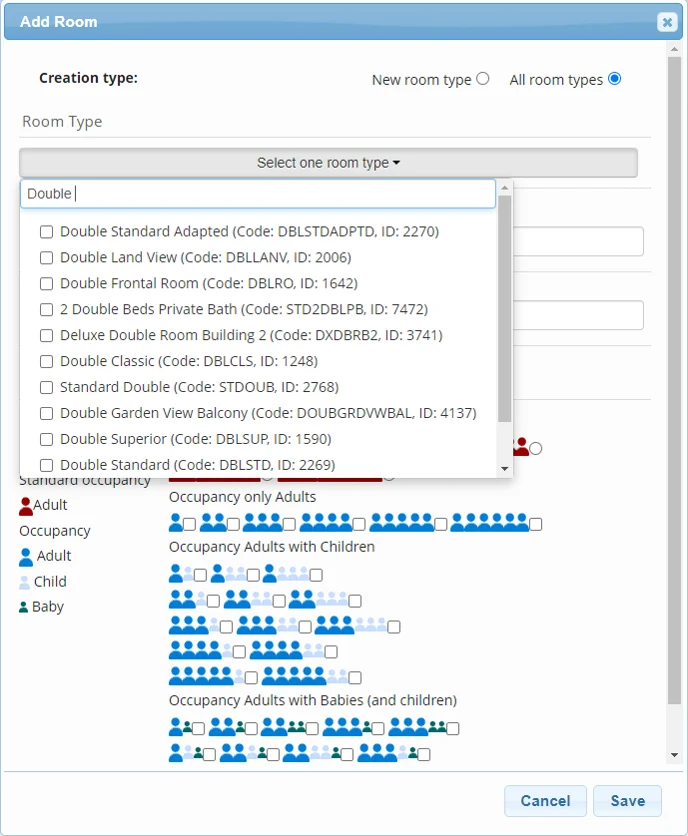
2. Creating a New Room Type
- Enter a code and description for the new room type.
- Save it, and the room type will be added to your room master list.
- Once saved, it will be available in the All Room Types section.

Assigning Room Occupancy (Uses)
Once your room type is ready, you must define its occupancy combinations ("Uses"). The Extranet provides a predefined selection of standard passenger combinations (up to 8 guests) grouped by adults, children, and babies.
If your room accommodates a unique or larger combination not listed by default (up to 16 adults or 9 children/babies), you can manually add it by selecting Create a new use.
For step-by-step instructions on managing standard occupancies or configuring custom combinations, see the Create a New Use Guide.
For a comprehensive look at all available Inventory features, browse the Inventory Extranet Manual.