My Apps
Manage your apps in one place
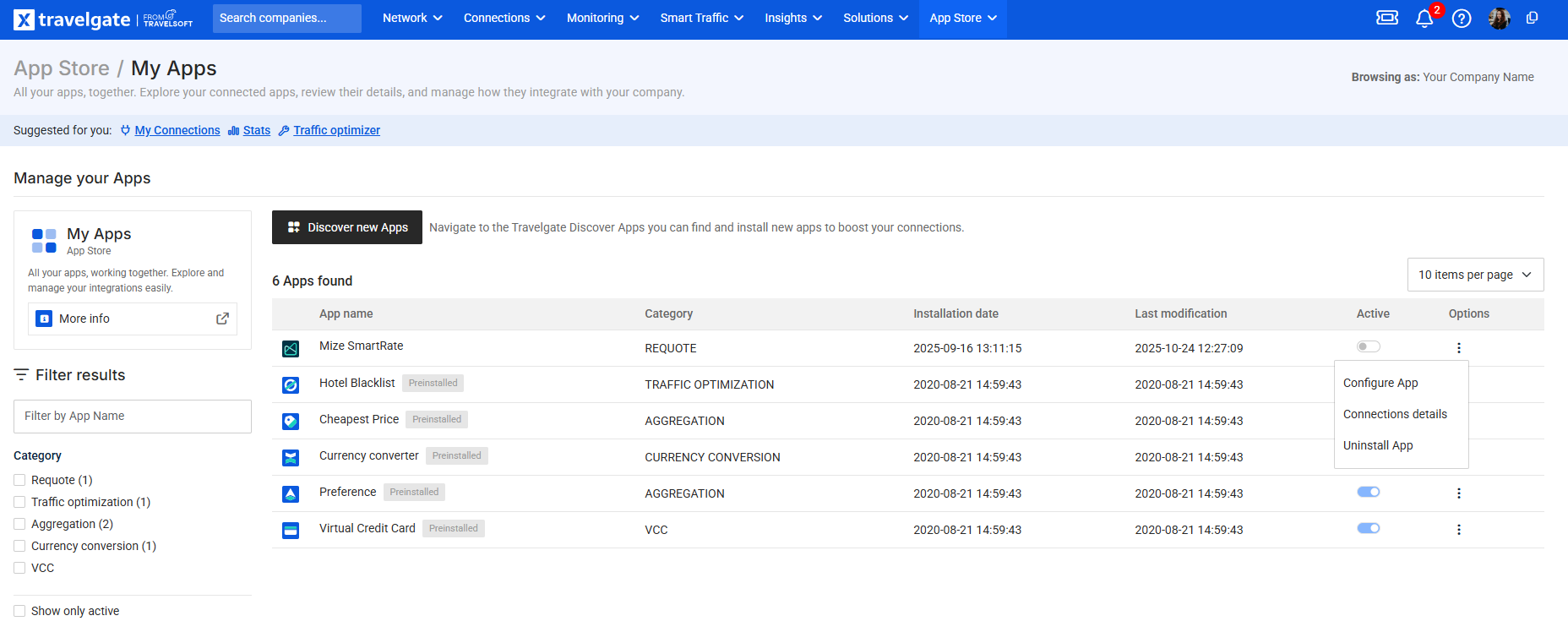
The My Apps section is your personal dashboard within the Travelgate Store. Whether you are a Buyer or a Seller, this is where you can view, access, and manage all the applications that are currently active or pre-installed for your account.
Think of this section as your control center: from here, you can quickly jump into the configuration of your business rules or adjust the settings of your active integrations.
What can you do in My Apps?
In this section, you have full control over your tools with the following capabilities:
- Quick Activation/Deactivation: You can enable or disable any app instantly using a simple toggle. This is particularly useful for testing new strategies or temporarily pausing a specific logic without losing your configuration.
- Access the App Panel: Every app is unique. By clicking on "Go to App", you will access its specific dashboard (for example, the priority rules in the Preference App).
- Manage Configuration: You can review and modify the initial setup parameters of an app at any time to ensure it still aligns with your business goals.
- Uninstall: If you no longer need a third-party integration, you can uninstall it directly from this view to keep your workspace clean.
Pre-installed Apps
Remember that some of Travelgate's core tools, such as Hotel Blacklist or Preference, are pre-installed for you. You don't need to go through an installation process—they will appear automatically in your My Apps section, ready for you to start creating rules.
How to Access
To manage your active tools, navigate to the Travelgate Store in the top main menu and select the My Apps tab.
Configuration Levels: Connection vs. Access
To provide maximum flexibility, Travelgate allows you to define exactly where an App should apply its logic. Understanding these levels is key to maintaining a scalable integration.
1. Connection Level (Global Mode - Recommended)
By default, an App is configured at the Connection level. This means the App applies to the entire relationship between a Buyer and a Seller.
- Automatic Scaling: Any new access created under this connection in the future will automatically inherit the App's configuration.
- Low Maintenance: You don't need to manually update the App settings when you add new credentials (access) (e.g., adding a B2B access to a connection that already has B2C).
2. Access Level (Specific Mode)
If you need a more granular approach, you can choose to apply an App only to specific accesses within a connection.
- Granular Control: Ideal if you want a specific app to apply to one access (e.g., B2B access) but not another (e.g., B2C access) within the same connection.
- Manual Management: You must remember that if you add a new access to your connection, you will need to edit the App configuration to include it manually.