Connections Content
Managing your content efficiently without relying on Travelgate helps you get to market faster and boost sales. We value transparency and believe in giving our partners the right tools to manage their static content.
In the Connections Content section, you can easily check and force updates for your connections' static content, like hotel lists. This allows for timely updates and better market responsiveness, making your operations smoother and more effective.
How Can I Check My Connections Content?
-
Log into our Platform.
-
Click on "Connections" > Connections Content
-
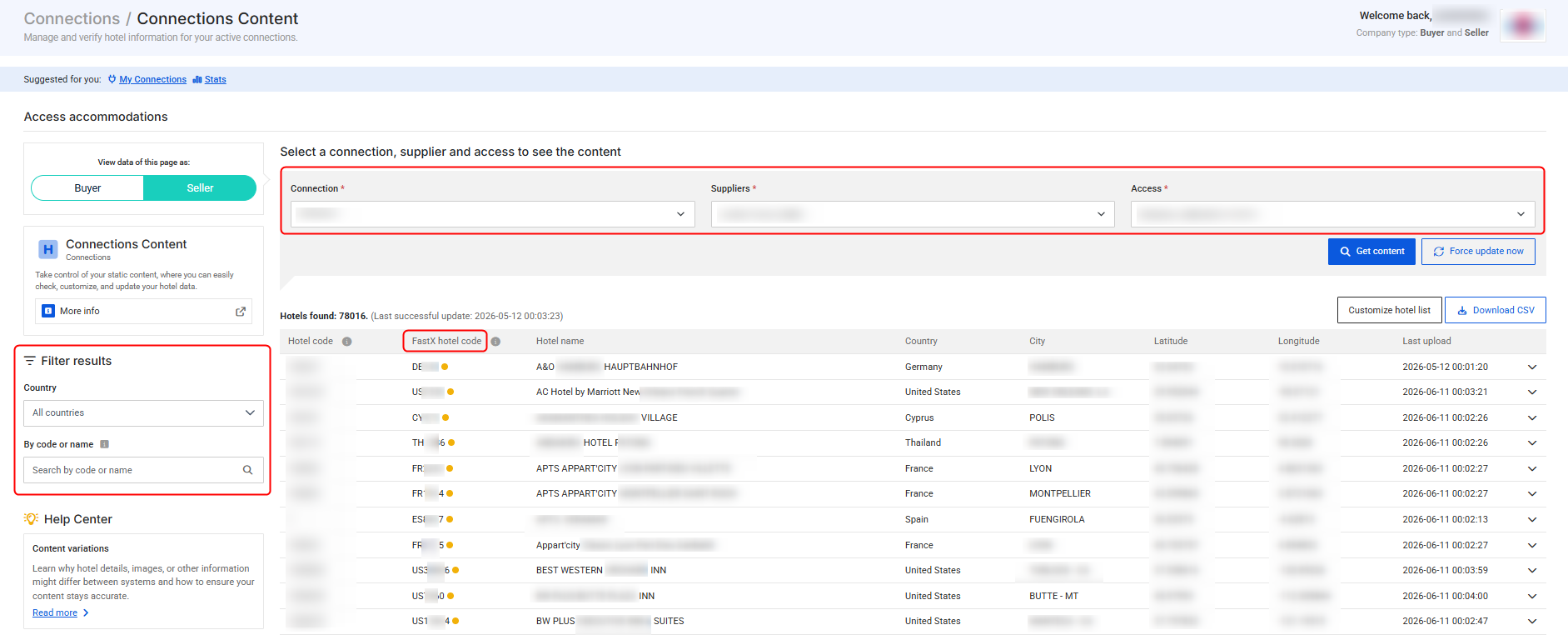
Select a Connection, Supplier, Access, and Language, then click "Get content". Use the left-side panel to filter results by Country, Hotel code, or Hotel Name.
Available LanguagesThe languages available in the dropdown depend on the selected access, as they correspond to the languages the Seller has indicated they can return for that access.
 Missing Access in the Connections Content Dropdown?
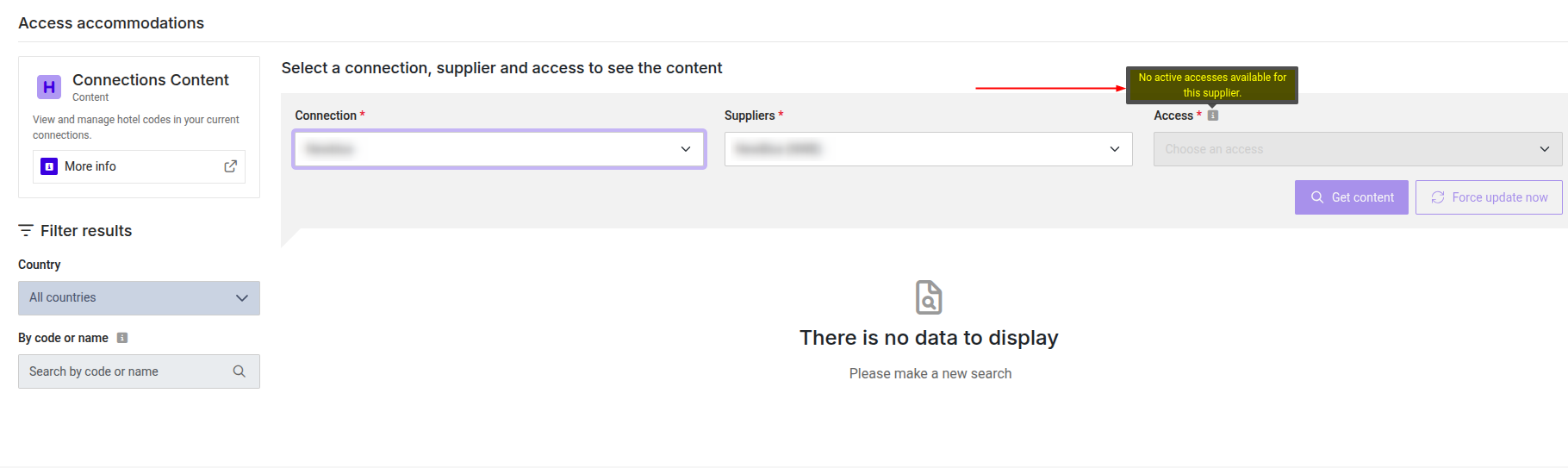
Only active accesses from My Connections appear in the Connections Content dropdown. If the access is missing, ensure it is set to "Active" in the "My Connections" section.
Note: If no active accesses exist for a connection, the dropdown will be disabled with the message "No active accesses available for this supplier." If necessary, make the corresponding access-level revisions in the "My Connections" section.
-
On the results screen, you can review the following details:
- Hotel code
- FastX hotel code (or 'Processing' if a FastX code has not been assigned yet to that supplier hotel code).
- Hotel name
- Country
- City
- Latitude
- Longitude
- Last upload
-
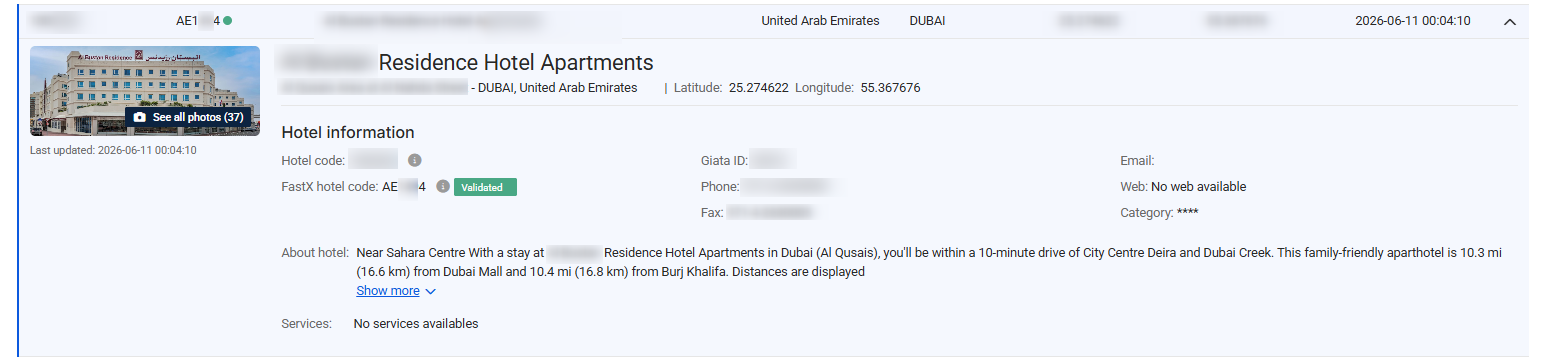
Clicking on a hotel opens its hotel profile, which displays additional property-level information (general details and room types). For example:
- Hotel Address
- Hotel code
- Original supplier hotel code (if applicable)
- GIATA ID
- Phone
- Fax
- Web
- Category
- Room types: list of all available rooms, as well as their room code, bed types and occupancies.
Hotel Code VisibilityTravelgate displays Hotel code as the primary hotel identifier used in the Buyer booking flow within the Supplier context.
For traceability, Original supplier hotel code (the Seller's native hotel code) is shown only when it differs from Hotel code. If both values are identical, the original supplier code is hidden to avoid redundancy.
For the FastX portfolio, the FastX hotel code and Original supplier hotel code columns are excluded because the primary Hotel code already displays the required FastX identifier.
Missing Hotel Details
The information shown in Connections Content depends on the data provided by each supplier. As a result, some fields may be unavailable for certain properties. If a field is missing, contact the Seller to assess whether that information can be included through the integration.
FastX Validation Statuses
Connections Content shows each property's FastX validation status. You can see this status in two places: the portfolio list (colored dot status indicator) and the expanded hotel details (status tag).
1. Portfolio List Screen (FastX Status Indicators)
In the portfolio list, if a hotel has an associated FastX code, a colored dot appears next to the code in the FastX hotel code column.
- Pending (Yellow): Travelgate has generated a suggested correspondence, but the Seller has not yet confirmed or rejected it. Pending mappings are available in Default mode and excluded when the Buyer enables validated-only mode.

- Validated (Green): The Seller has reviewed and confirmed the suggested correspondence between its native code and the FastX code. This indicates Seller confirmation of the mapping, not an independent Travelgate certification of every product attribute.

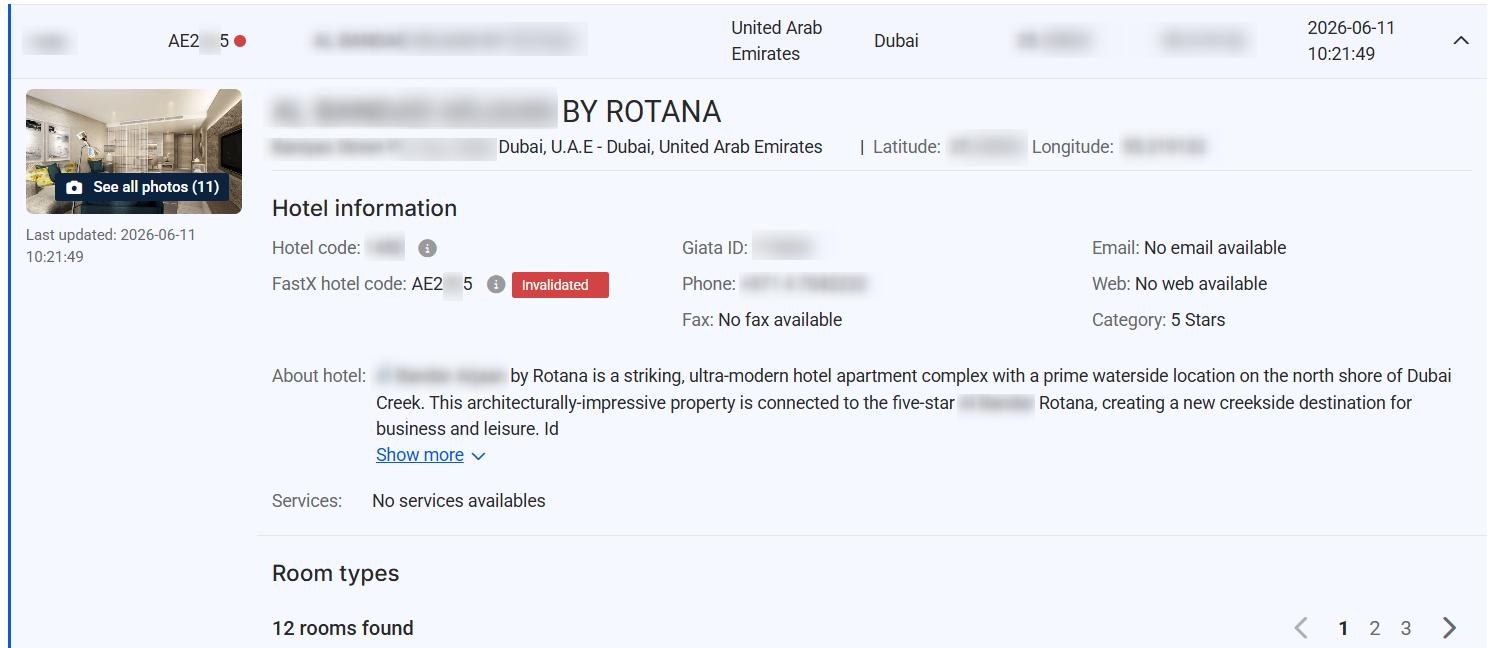
- Invalidated (Red): The Seller has rejected the suggested correspondence. Invalidated mappings are blocked from the FastX booking flow for all Buyers (both for Default and Validated mode) until a new mapping is proposed.

These statuses apply to FastX hotel and board mappings. FastX room codes and descriptions are generated at Search time and are not Seller-validated.
2. Expanded Detail View (FastX Status Tags)
To interact with these statuses, you must click on the hotel row to view the detailed Hotel information. In this expanded view, the status is displayed as a full, color-coded tag.
Clickability depends on your view mode (Buyer or Seller) and the tag's state:
- Buyer Mode: All tags are informational only — flat visual labels with no click interaction.
- Seller Mode: Interaction depends on the tag state:
- Validated (Green): Non-clickable. No further validation action is required.
- Invalidated (Red): Non-clickable. Navigation through this tag is disabled.
- Pending (Yellow): Clickable. Clicking the tag automatically redirects you to the FastX Codes section to complete the validation.
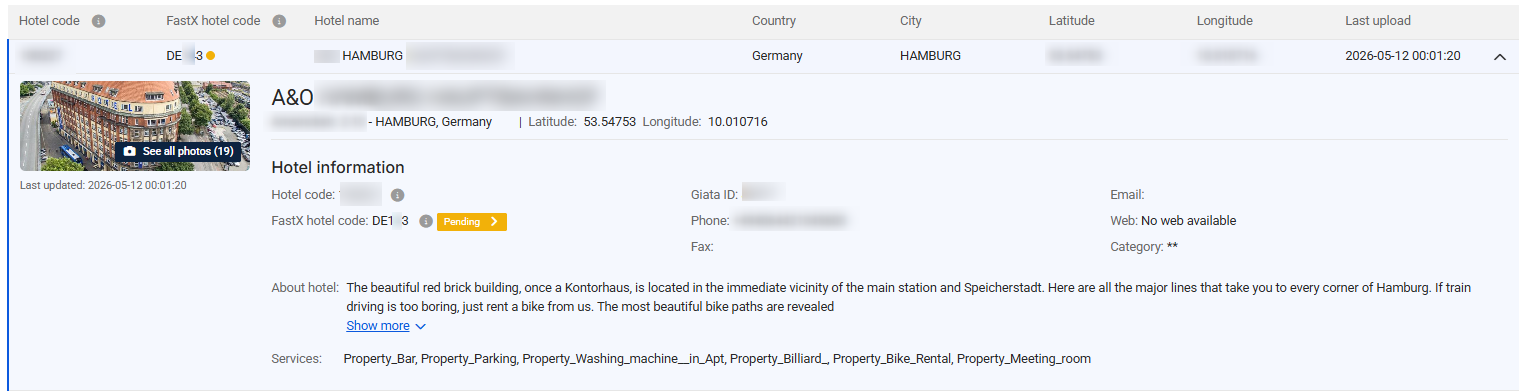
- Validated (Green): Non-clickable. No further validation action is required.
Validating a Pending FastX Code (Sellers Only)
If you are operating in Seller mode and need to resolve a pending mapping, follow these specific steps to use the direct filter navigation:
Step 1: Locate the Pending Property
From the portfolio list, find a property displaying a yellow dot indicator under the FastX column.
Step 2: Expand Hotel Details
Click in the hotel row to expand the full hotel information card. You will see the complete Pending tag next to the FastX hotel code.
Step 3: Click the Status Tag
Click directly on the yellow Pending tag.
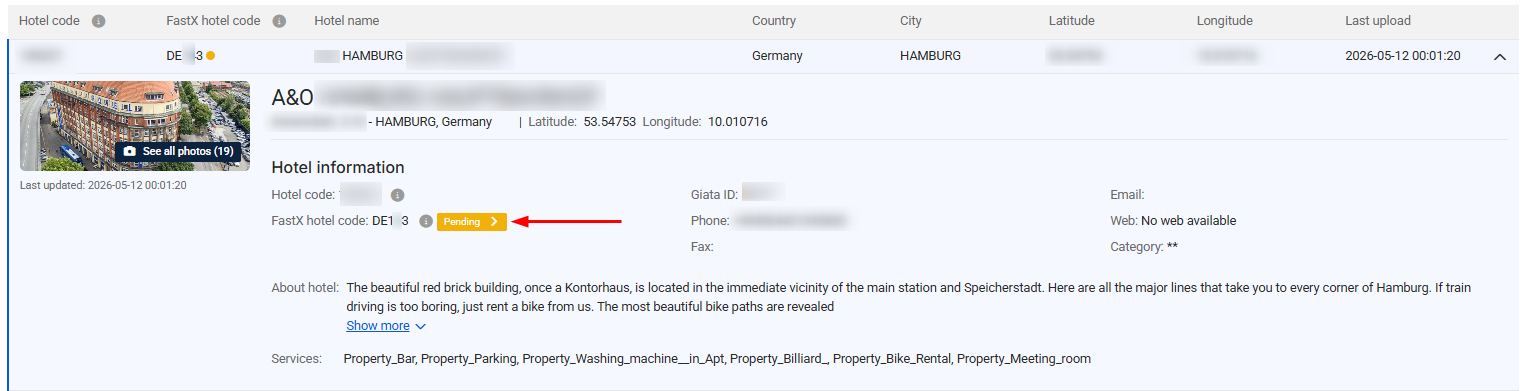
Step 4: Resolve in FastX Validation Tool
The platform redirects you automatically to the FastX Codes / FastX Validation Tool, with the supplier and hotel code prefilled so you land directly on the target mapping.
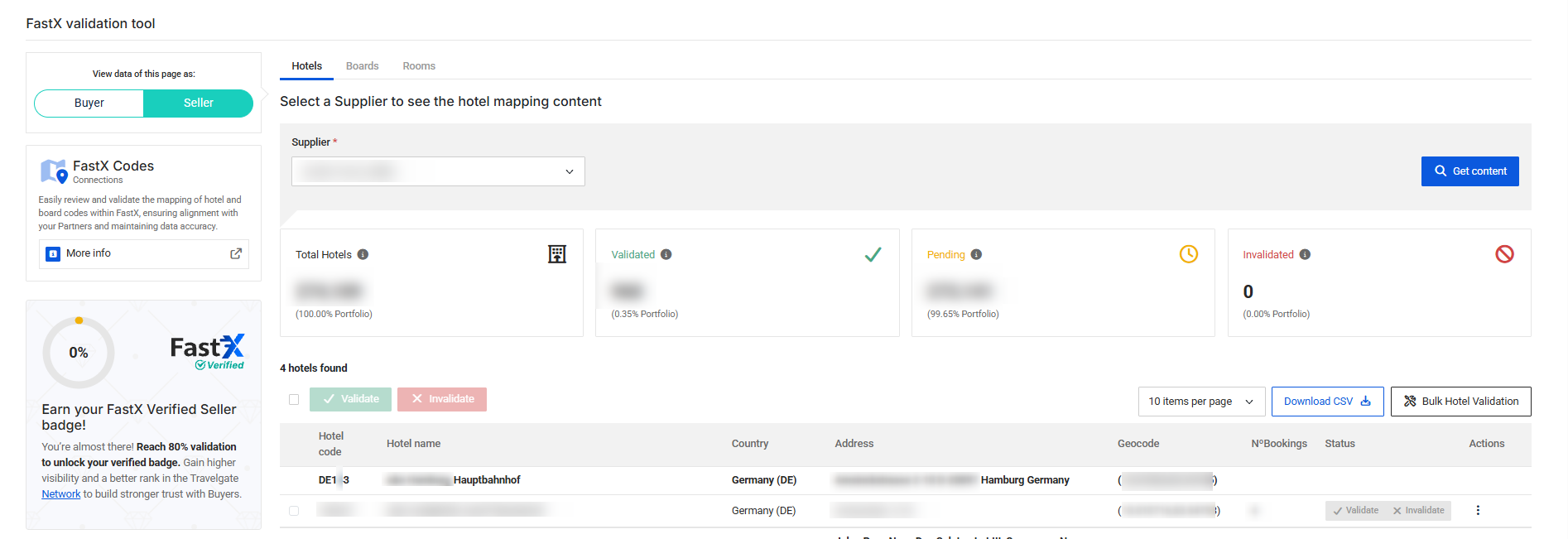
Review the data and choose to Validate or Invalidate the mapping.
- Confirm you are in Seller mode (check the view toggle in the upper-left corner).
- Confirm the tag status is Pending — Validated and Invalidated tags are not clickable.
- Refresh the page and expand the hotel row again before retrying.
How Can I Download the Seller's Portfolio in CSV?
-
Access the "My Connections Content" section (follow the steps above) and filter by access.
-
Look for the "Download CSV" option next to the Get Content button on the screen.
-
Click on "Download CSV".
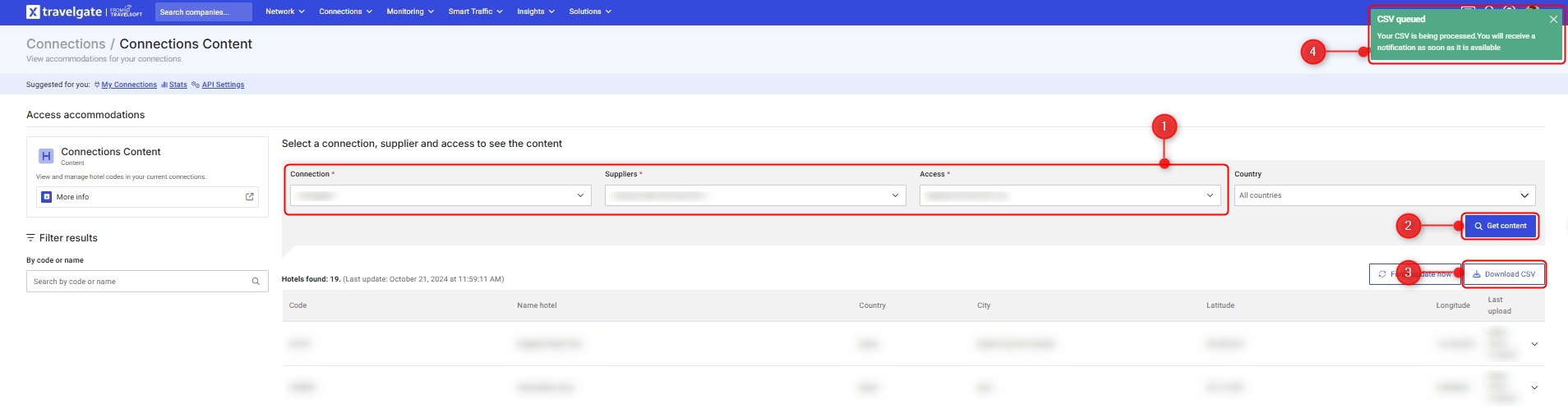
-
Wait for a confirmation message that the CSV is being processed.
-
Once processed, a notification will appear in the notification bell. Click the notification bell icon, then click the corresponding notification in the list to start the download.
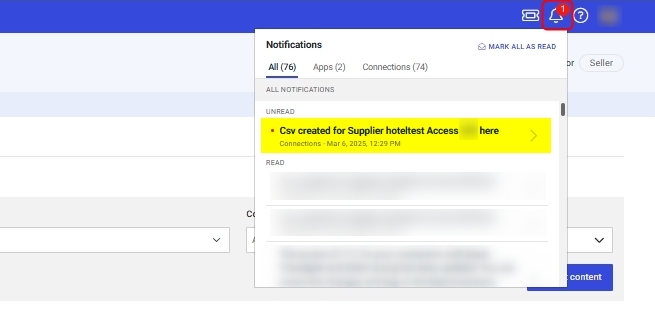 Don't forget to check the notification bell
The CSV is not downloaded automatically once processed. If you don't see the file after requesting it, check the notification bell before opening a support ticket.
-
The CSV file includes these fields (if available by the Seller):
- Hotel code
- Original supplier hotel code
- FastX hotel code
- Hotel name
- Country
- Latitude
- Longitude
- Address
- City
- Category code
- GIATA ID
- Last Update
Customize hotel list
What is the "Customize hotel list" functionality?
This feature allows Sellers to exclude or include specific hotels from their portfolio for a given Buyer credential (Buyer Access Code). Even if the Seller’s system returns the full property list, they can control which hotels are visible to each Buyer by explicitly filtering out selected hotels at their end.
Who can use the "Customize hotel list" functionality?
This functionality is only available to Sellers on the platform. If your organization operates with both Buyer and Seller profiles, ensure you access this section using your Seller profile.
How can I use the "Customize hotel list" functionality?
-
Log in to Travelgate and confirm you are browsing as a Seller.
infoIf you are connected to Travelgate as both a Buyer and a Seller, you can easily switch between views using the "View data of this page as:" selector on the left side of the screen.
⚠️ Important: To use this specific functionality, please ensure you have selected and are browsing in the Seller view.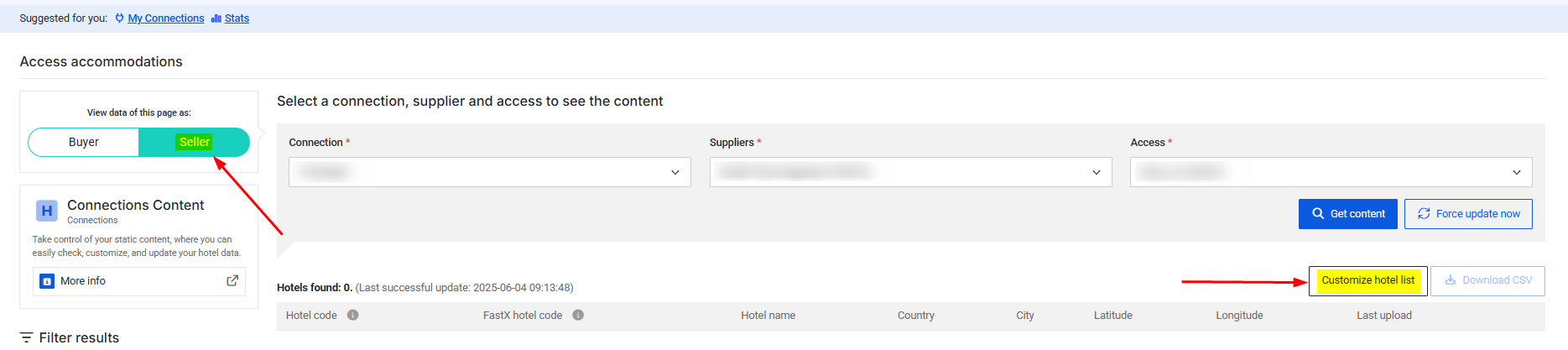
-
Go to the Connections Content section and filter by the desired connection and access to view the list of hotels returned for those credentials.
-
Locate the "Customize hotel list" button above the results table, next to the "Download CSV" button.
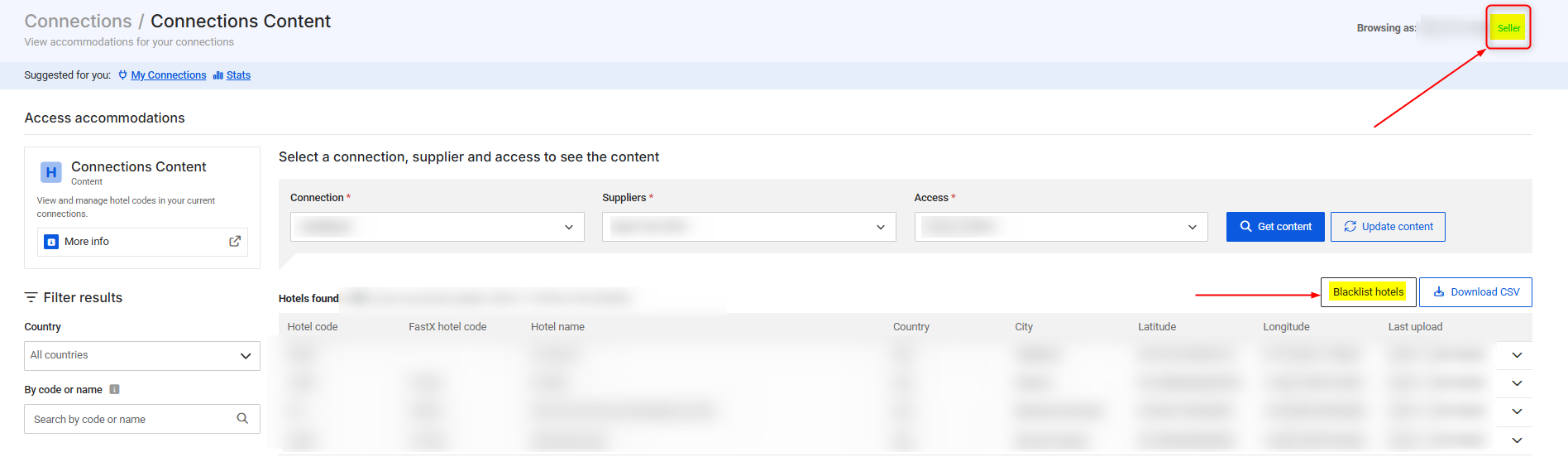
-
Click the "Customize hotel list" button to open the Configuration screen. Here you’ll see:
- A summary of the selected connection/access
- The Operation list (Blacklist or Whitelist)
- The "Upload CSV" button
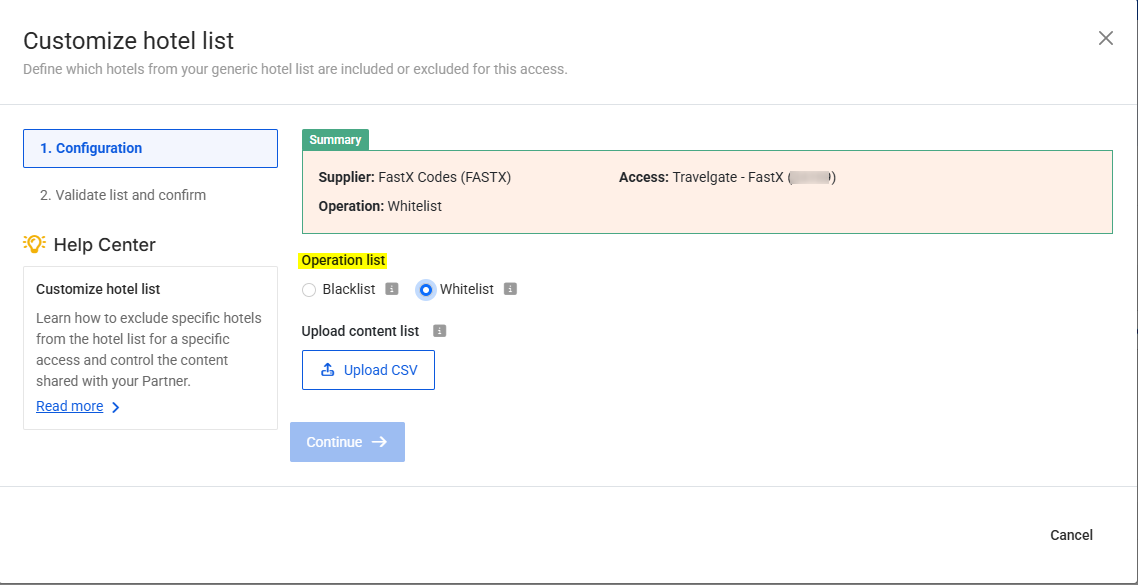
-
To exclude or include hotels from the list, upload a CSV file containing the hotel codes to be blacklisted or whitelisted (according to the chosen operation). The CSV file:
- Does not require a specific file name
- Must follow these formatting requirements:
- Only includes hotel codes already present in the Buyer's portfolio for that access
- Contains one column only
- Uses no headers or delimiters
- Includes one hotel code per row
-
After uploading, click Continue to begin validation.
-
If validation fails, an "Invalid CSV file" error will be shown.
-
If validation succeeds, you’ll proceed to the "Validate list and confirm" screen, where you can:
- Review the uploaded data
- Download or remove the file if needed
- Confirm the changes
-
-
Once confirmed, the Customize hotel list will be applied to the selected access, and a notification will appear in the notification bell confirming the update. Note that the processing time will depend on the size of the hotel list file.

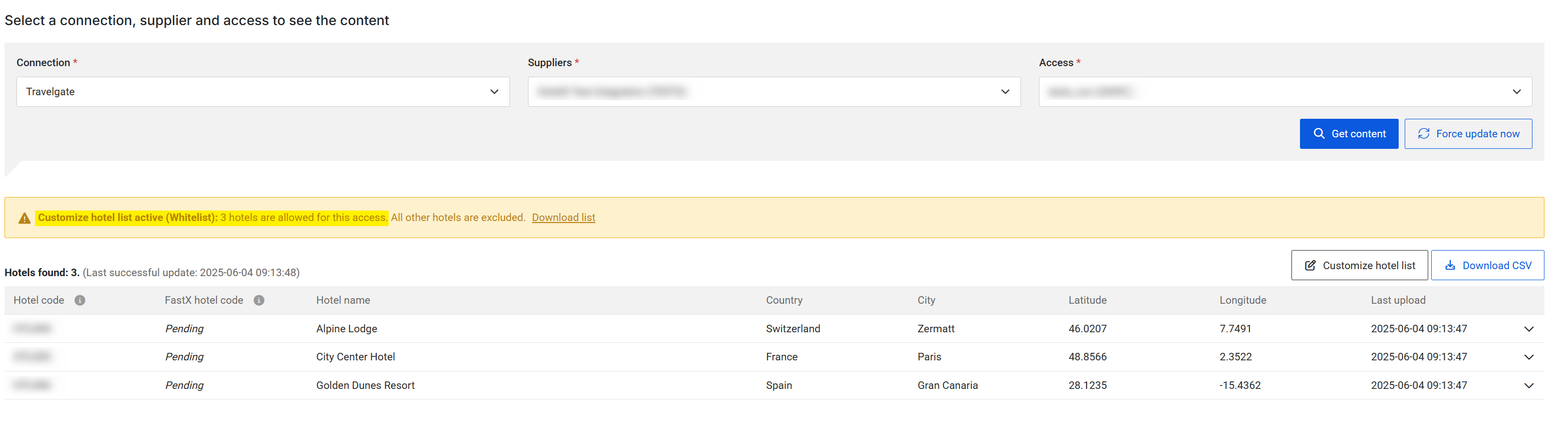
- The Customize hotel list functionality relies on the hotel codes as shown in our Marketplace. As a Seller, you can obtain the list of hotel codes for a Buyer's hotel list either by clicking on individual hotel codes or by downloading the full portfolio as a CSV file (Hotel code field).
- If you encounter errors, ensure your CSV file meets the expected criteria:
- CSV format
- A single column
- No delimiters
- One hotel code per row
- Only hotel codes currently present in the portfolio for the selected connection
- Hotel codes not included in the supplier's portfolio will be ignored. If your hotel list appears empty after uploading, verify that the Operation is correct and the Hotel Codes in the CSV are valid.
As a Seller, how can I edit or remove a Customize hotel list for one of my Buyers?
To edit or remove a Customize hotel list for a specific access, follow these steps:
-
Go to the Connections Content screen and filter by the desired connection and access.
-
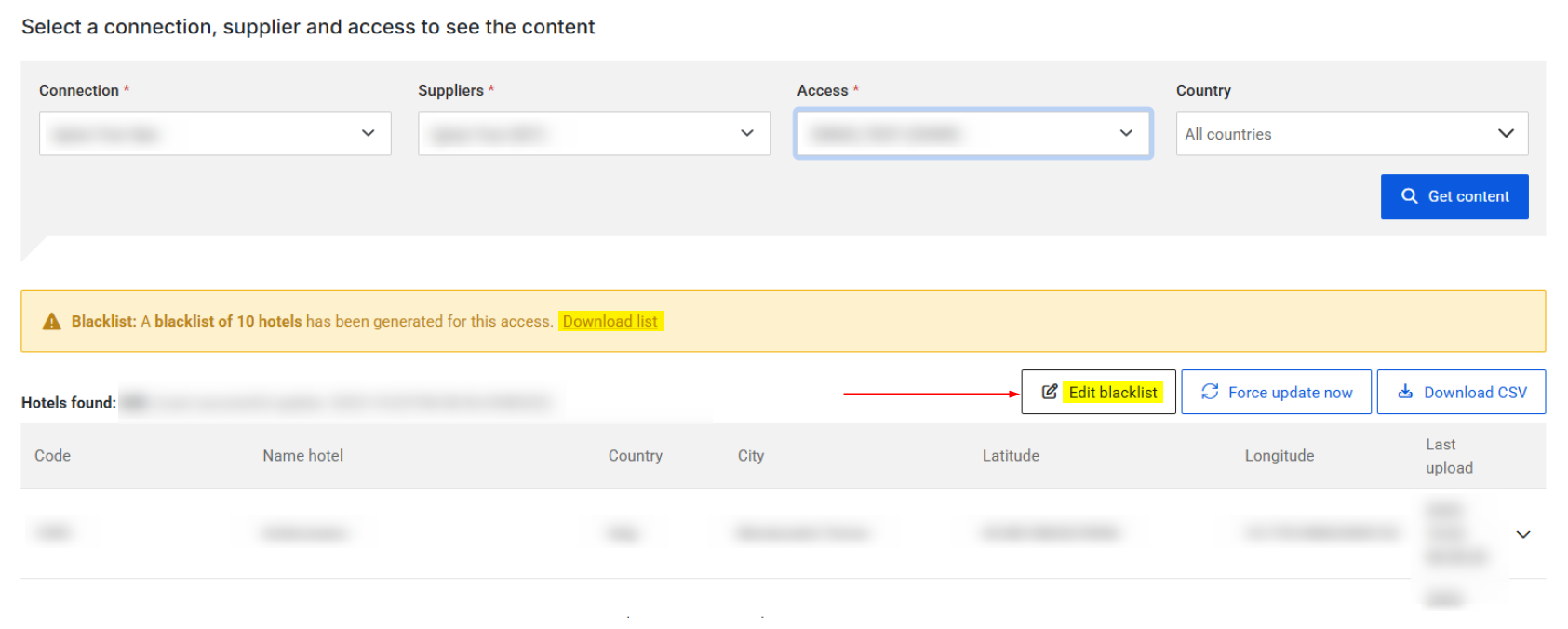
Locate the "Edit Customize hotel list" button next to the "Download CSV" button, then click it to view the current hotel list configuration.
-
To remove the hotel list, simply click "Delete hotel list".
-
To edit the customized hotel list:
- First, delete the existing customized hotel list using the step above.
- Then, upload a new CSV file with the updated list of hotel codes, following the same process outlined in the "How can I use the 'Customize hotel list' functionality?" section.

How Can I Use the "Force Update Now" Functionality?
Both Buyers and Sellers can force an update of static content, which is applied across all content methods. To do so, just follow these steps:
-
Start by checking whether the requested method is implemented by running a Metadata query and review the value of the
implementedfield. If the method is not implemented, contact the Seller directly to discuss the possibility of adding it. Note that no content will be returned for methods that haven’t been implemented by the Supplier. -
Access the "My Connections Content" section (follow the steps above) and filter by access/Seller credentials.
-
Filter a specific connection and access, ensuring you are browsing as a Seller or Buyer.
-
Click on 'Force Update Now' to trigger the content update. The time taken will depend on the content size and processing time.
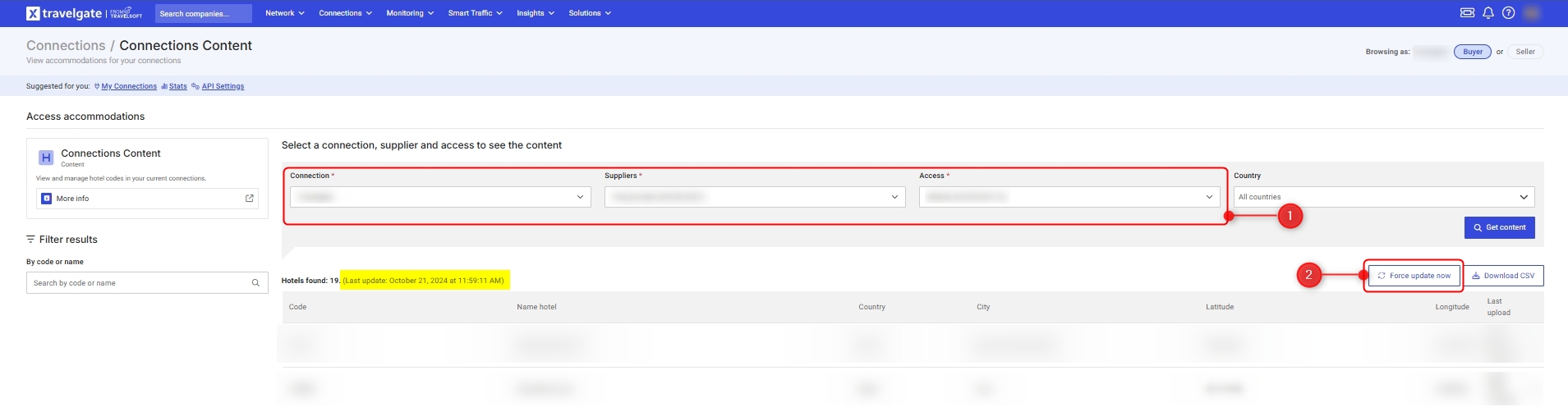
When using 'Force Content Now' to refresh a Seller's static content, note that the update duration depends on the content size. The update is processed through a queue system and will begin once it reaches its turn. This could take anywhere from a few minutes to 72 hours.
- If the update hasn't completed after 72 hours, you may attempt the update again.
- Updates within the 72-hour window are considered normal, and there’s no need to contact support until this period has passed.
- Large updates (e.g., updating multiple accesses for a Supplier across all Buyers) will result in a longer queue and may take additional time.
If you've followed all the steps and still do not have the most up-to-date content, feel free to contact our Support Team. We’re here to ensure you have the best possible experience!
Frequently Asked Questions
Why is the FastX status tag not clickable?
How long does it take for a status change to reflect here?
Is the Seller's content stored in Travelgate's database?
How often is a Seller's portfolio updated?
Static content updates occur every 7-14 days, depending on the method. Our system adds new hotels to a Seller's portfolio every 7-14 days, while hotels that are no longer available are removed every 30 days. For example, for a portfolio of 100K hotels:
- If the Seller adds 50K hotels, they will be added within 7-14 days.
- If the Seller removes 50K hotels, they will be removed within 30 days.
Can I see the content of a Supplier before requesting its activation?
To access the content of any Seller, including hotels, rooms, and destinations, you need to establish an agreement with them and request their activation via our Connect Form. Once the connection is established, you can access their content.
What is a shared access?
A Shared Access is an optimization feature designed for Sellers who provide the same hotel portfolio to multiple Buyers. It allows for more efficient delivery of static content and reduces the technical load on infrastructure.
In this setup, Travelgate uses a dedicated set of credentials (the Parent Access) exclusively to request static data such as hotel lists, property details, and destinations. This data is then automatically distributed to all associated Buyers.
Key details to consider:
- Optimization: Instead of each Buyer pulling updates individually, Travelgate makes a single request, reducing server load and ensuring all Buyers receive the same updated content.
- Usage: These credentials are strictly for static content synchronization and are never used for availability or booking requests.
- Limitations: Because the hotel list is shared, features like "Customize hotel list" are not available, as any change would affect all Buyers in the group.
How to manage:
If you want to activate this feature to optimize your content delivery, or if you need an access to stop being shared, please contact our Customer Support team. To enable it, you will need to provide a dedicated set of static content credentials and the list of Buyers to be included.