FastX for Buyers
Buyers use this section to visualize the FastX master hotel and board list and monitor Supplier mappings.
These codes are available exclusively via the HotelX Pull Buyers API. If you're currently on the Legacy API, now is the perfect time to upgrade to HotelX to enjoy our latest features, richer content, and a smoother integration!
Already using HotelX? If you're a Buyer connected to Travelgate via our HotelX Pull Buyers API and want to start using FastX Codes, simply contact our team via sales.support@travelgate.com to manage the upgrade and get your FastX access.
Contact our team at sales.support@travelgate.com to get started!
Step-by-Step Guide
- Log in to the Travelgate Portal.
- Switch to Buyer mode and navigate to the FastX Codes section.
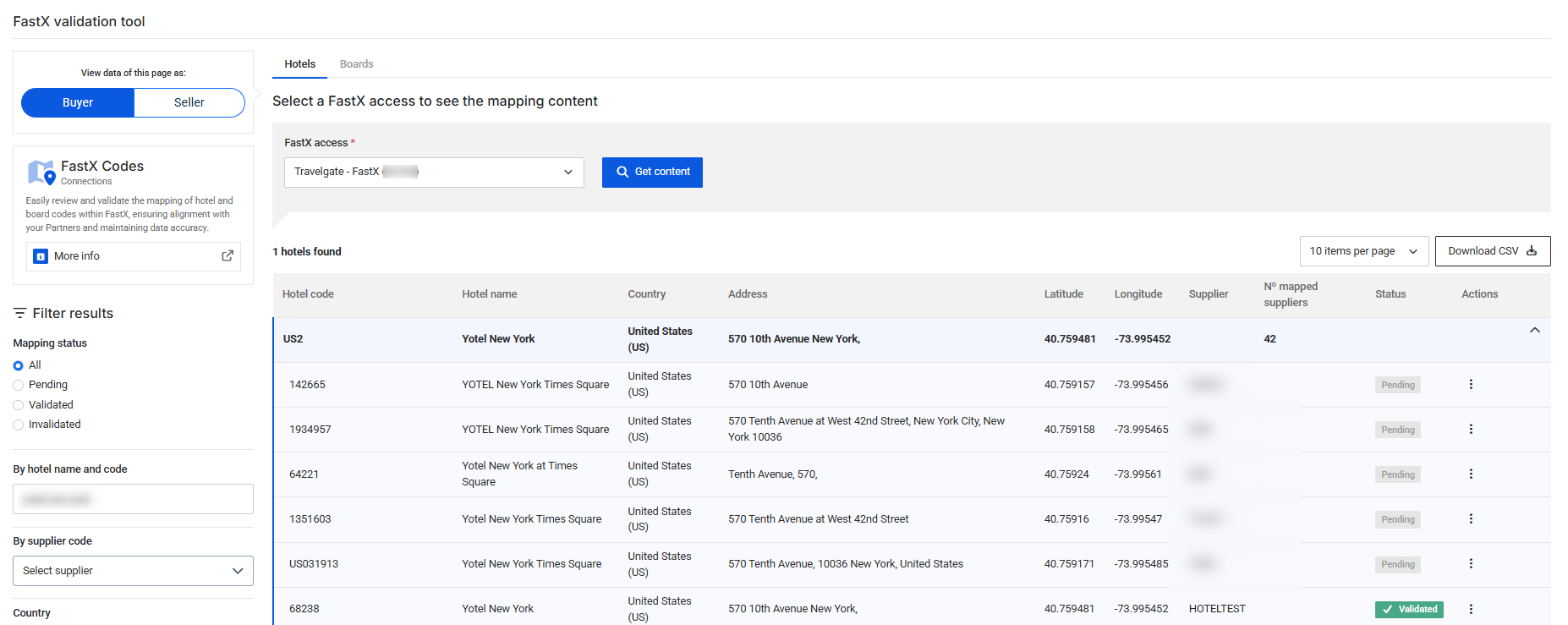
- Select a FastX access from your organization to see the mapping content.
Features
- See which Suppliers are mapped to each FastX hotel and board code.
- Check validation status for each Supplier (validated or pending).
- Filter by hotel, country, or status to monitor mapping completeness.
- Export reports to CSV for analysis or auditing.
Buyers benefit from consistent FastX codes across all Suppliers, simplifying product aggregation and ensuring faster, more efficient access to travel inventory.
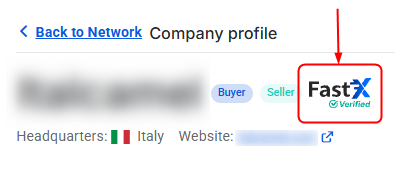
In our Network section, Suppliers with 80% or more of their eligible hotel and board mappings validated in FastX receive a FastX Verified Seller badge. This badge is a validation-coverage indicator — it helps you identify Suppliers with a largely-validated hotel and board portfolio.
Check our Network today to find your next badge-validated partner!
Filters and Search
- Status: Validated or Pending.
- Name or Code: Search for hotels or boards.
- Country: Filter by location.
Export to CSV
- Click on the Download CSV button to export data in a CSV file.
- Includes Travelgate master data and suppliers portfolio.
- Applies active filters to the exported file.
Rooms (Standardization Test Tool)
The Rooms tab is designed to test how FastX standardizes free-text room descriptions sent by Sellers.
Instead of validating hotel or board mappings, this section lets you simulate the room standardization process and preview the normalized output that Buyers will receive in API responses.
What this section is for
Use Rooms when you want to:
- Paste one or more native Seller room descriptions.
- See the standardized FastX room description generated by the engine.
- Review extracted attributes such as category, type, capacity, view, and beds.
- Detect unclear or noisy native descriptions before they impact production traffic.
How to use it
- Go to FastX Codes.
- Open the Rooms tab.
- Enter one or more Seller room descriptions (one input per room).
- Click Get room(s) content.
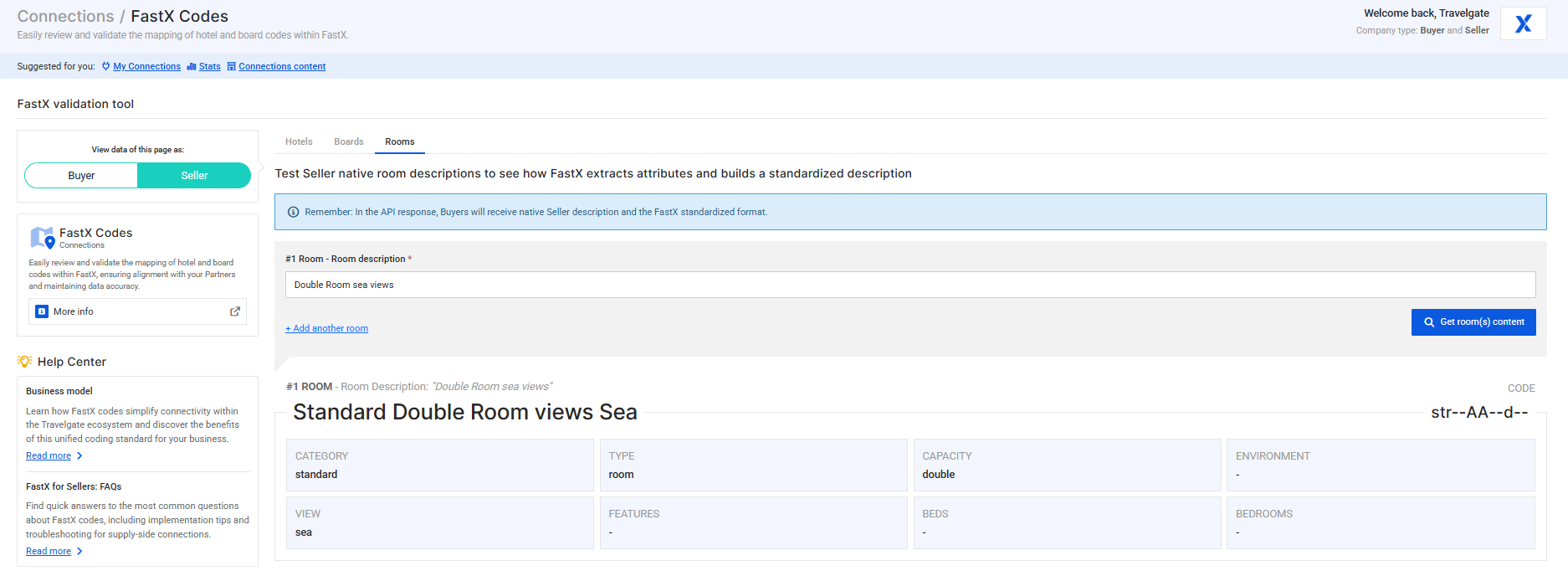
- Review the output card:
- Standardized room description (FastX standardized text).
- Generated room code.
- Extracted attributes (for example category, type, capacity, view, beds).
How to interpret the result
- The tool returns a FastX standardized format based on the native description provided.
- If an attribute does not appear in the native text, it may appear empty (
-) in the result. - The output is intended to support comparison and aggregation; it is not a verification of physical inventory or a guarantee that rooms with the same standardized output are commercially identical in every respect.
- Supplier-native room codes and descriptions remain available for traceability and should be reviewed whenever exact product equivalence is material.
Best practices
- Keep native room descriptions clear, concise, and structured.
- Avoid mixing room features with unrelated promotional text.
- Include key room attributes explicitly (bed type, view, occupancy-related details when relevant).
- Test representative samples from your inventory periodically to ensure quality.
This tab is a testing and preview tool for room standardization behavior. It helps you validate how descriptions are interpreted before relying on them in operational booking flows.
Room Standardization vs. Hotel/Board Mapping
Room standardization is fundamentally different from hotel and board mapping:
Hotel/Board Mapping (validated)
- Persistent: Mapping is reviewed once by the Seller, stored, and reused across all Buyers
- Seller-validated: The Seller confirms each mapping is correct via the Hotels and Boards tabs
- Status-based access: Buyers can work with Validated, Pending, or exclude Invalidated codes
Room Standardization (real-time, not validated)
- Real-time: Generated at Search time from the Supplier's native room description
- Not Seller-validated: Automated process; Sellers do not validate individual room outputs
- Limitations: Output quality depends on the source description; attributes not present in the native text may be missing; standardized grouping does not guarantee commercial identity
- Native data always preserved: The original Supplier room code and description are always returned alongside standardized values
Use the Rooms tab to preview how descriptions are interpreted. For operational mapping control, work in the Hotels and Boards tabs.
General Notes and FAQs
FastX Mapping Status
Each FastX mapping has one of three statuses, determined by Seller review:
Validated
- Meaning: The Seller has reviewed and confirmed the suggested correspondence between their native code and the FastX code
- Impact on booking flow: Allowed in both Default and Validated-only modes
- Note: Validated status confirms the Seller's approval but does not constitute independent Travelgate certification of every commercial or descriptive attribute
Pending
- Meaning: The suggested mapping is awaiting Seller confirmation and review
- Impact on booking flow: Allowed in Default mode; blocked in Validated-only mode
- Action: Sellers should review and confirm (Validate) or reject (Invalidate) pending mappings
Invalidated
- Meaning: The Seller has rejected the suggested mapping as incorrect or no longer applicable
- Impact on booking flow: Never allowed; automatically blocked to protect booking quality
- Action if invalidated: Re-map the property and re-validate if needed
Default Mode (recommended for most Buyers)
- Allows both Validated and Pending codes
- Maximizes content availability while respecting Seller validation preferences
Validated-only Mode
- Allows only Validated codes
- Requires manual configuration in API Settings
FAQs
Which FastX codes can I use in my booking flow?
By default (Default mode), your booking flow allows both validated and pending FastX codes from Suppliers. Invalidated codes are never allowed — Travelgate automatically blocks invalidated codes to protect booking quality.
If you prefer to use only validated codes, you can enable this restriction in your API Settings under the useOnlyValidatedFastXCodes option.
In which languages are FastX room descriptions returned?
Room descriptions can be returned in either English or Spanish. This can be configured by the Buyer according to their preference.
Can I obtain FastX codes if I request with the Supplier’s context?
Buyers with FastX access performing a Content request in the Supplier context will receive FastX codes for Hotels and Boards within the response's mapping node. Room codes cannot be obtained this way, as they are standardized through the Search response.
Note: This does not apply to the Booking Flow; if you use the Supplier context during Search, Quote, or Book, you will never receive FastX information.
Can I see FastX codes if I do not have FastX access?
Buyers without FastX access can still view the FastX hotel codes associated with some of their connected Suppliers. However, they will not have access to the dedicated FastX Codes section on the Travelgate web portal for advanced management and mapping visibility.