FastX for Sellers
Sellers use this section to validate or invalidate suggested mappings between their own hotel and board codes and Travelgate’s master FastX codes.

Step-by-Step Guide
- Log in to the Travelgate Portal.
- Switch to Seller mode and navigate to the FastX Codes section.
- Select a Supplier from your organization to review suggested mappings.
- View the table with paired hotel or board data:
- Top row: Travelgate master hotel data (code in format ISO2 country code + numeric ID, e.g.,
ES284122for Spain; name, country, address, geolocation). - Bottom row: Supplier's matching data.
- Extra info: Number of bookings since February 2023.
- Top row: Travelgate master hotel data (code in format ISO2 country code + numeric ID, e.g.,
- Decide if the pairing is correct:
- Validate: Confirms the match.
- Invalidate: Indicates no match.
Ways to Validate or Invalidate
-
Individually: Use buttons in the status column for each pairing.

-
In Group: Select multiple pairings with checkboxes and apply actions with the buttons above the table.

-
Bulk via CSV: Use the "Bulk Hotel Validation" button and download the hotel data and mapping, change the 'status' column to validate or invalidate, and upload for processing.

Seller Interface at a Glance
The FastX Codes Seller screen combines KPIs, validation progress, and quality signals so you can review mappings in one place.
1. Visual Summary Cards
- Total Hotels: Total number of hotels from your portfolio that have been successfully mapped to a FastX code.
- Validated: Hotels where you have confirmed the mapping is correct.
- Pending: Mapped hotels awaiting your review. These properties need your confirmation to ensure accuracy for your Buyers.
- Invalidated: Hotels marked as incorrectly mapped. To protect booking quality, these properties are excluded from the booking flow until they are re-mapped.
Use these cards first to understand your current mapping status before applying filters or reviewing individual rows.
2. Badge Progress Indicator
The circular % Validated indicator shows your validation progress and badge eligibility.
Earn your FastX Verified Seller badge! Validate 80% or more of your eligible hotel and board mappings to unlock your verified badge, gain higher visibility, and improve your ranking in the Travelgate Network to build stronger trust with Buyers.
The badge is a validation-coverage indicator, not a quality certification.
What it means:
- You have validated 80% or more of your eligible hotel and board mappings against FastX codes
- Your badge is visible to Buyers in the Travelgate Network, helping them identify Suppliers with a largely-validated mapped portfolio
What it does not guarantee:
- It is not a guarantee that every individual mapping or content attribute is error-free
- It does not cover room standardization, which is generated at search time and is not Seller-validated
- Individual mappings may still benefit from manual review by Buyers
3. Confidence Level Filter and Warning Icon
Use the Confidence Level filter to focus on low-confidence matches. These hotels are marked with a yellow icon by the mapping engine so you can prioritize manual review.
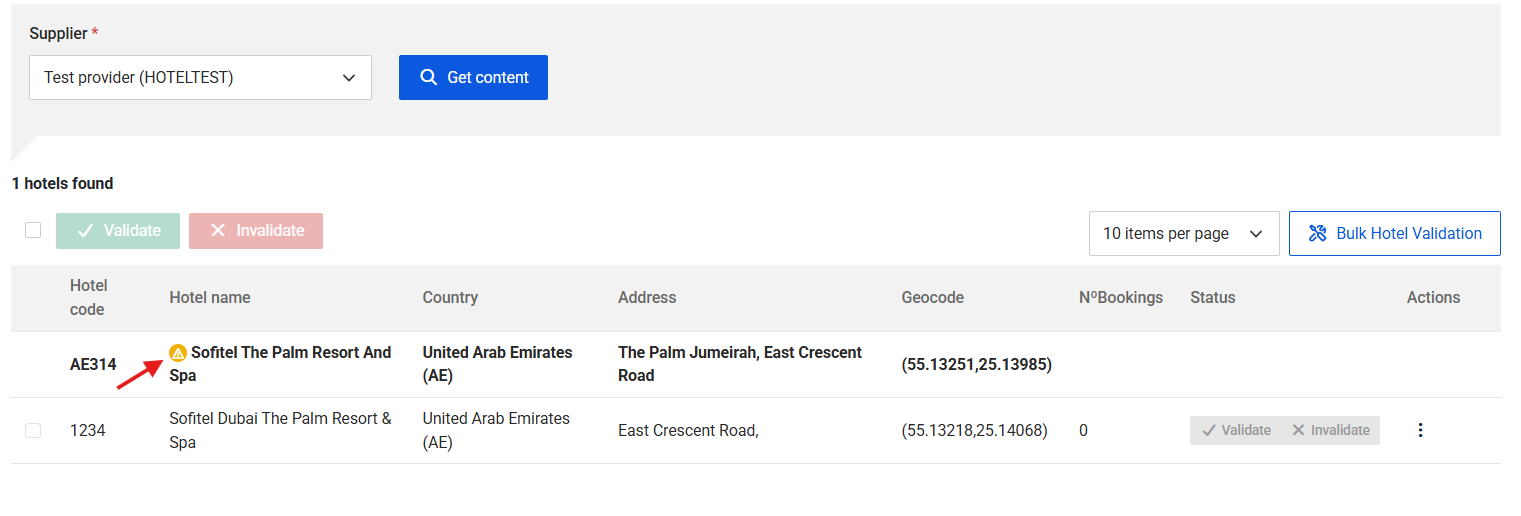
The yellow warning icon indicates a lower FastX match confidence score based on system-wide data analysis.
How the Confidence Signal Works
This metric analyzes all Sellers mapped to a specific FastX code. If the data deviates significantly across the network, the system flags a potential mismatch between the FastX content and the Seller's information.
Required Action for Low-Confidence Matches
To ensure data integrity, any match marked with this icon must be manually validated before it can enter the production environment.
The warning icon is a signal to pay special attention to the entry. It does not automatically mean the match is incorrect, and it can remain visible after validation because it reflects a collective data trend across the network.
Export to CSV

- Click on the Download CSV button to export the data as a CSV file.
- Includes Travelgate master data and the selected supplier's portfolio.
- Applies the active filters to the exported file.
Important Notes
- If unsure, leave the status as Pending rather than invalidating.
- New hotels or significant updates in your hotel list information automatically set the status to Pending and require re-validation.
- Check both hotel and board mappings.

Channel Managers selling through our Inventory solution use an Inventory hotel code rather than their native hotel code. This Inventory code is also mapped to a FastX. Do not automatically apply this FastX playbook, as public documentation describes Inventory FastX mappings as internally validated by Travelgate.
FAQs
Where does the portfolio of hotels and boards in the FastX section come from?
The hotel and board portfolio you see in the FastX section is compiled by Travelgate. It includes all the hotels and board types that you, as a Seller, have made available to Buyers through our marketplace. We aggregate this portfolio based on the hotels shared with all your connected Buyers, as long as each hotel includes the minimum required information (name, country, address, and coordinates).
Every two weeks, when we run the FastX process, we retrieve your latest hotel content and add any new hotels that are detected. If some of your hotels have updated information, this will also be taken into account. If the changes are significant — for example, a hotel name change — the system may suggest a new FastX code for that property with the status pending for your validation.
Why does my hotel not appear on the FastX website?
To successfully match a hotel with a FastX code, the following information is required: name, address, country, and coordinates. If you are already providing this information in your connection with us and your hotel still does not appear in the FastX section, it may be due to one of the following reasons:
-
The content data has not yet been synchronized with FastX.
Even if your hotel already appears in the Content section, the FastX code may still not be available.
This can happen because it may take a few days for us to synchronize the new data and run our matching algorithm to link it with a FastX code.
This process typically takes a few days and never more than one week after the hotel is detected. -
We detected your new hotel, but the matching algorithm could not find a suitable match.
Please ensure that the hotel’s name, address, country, and coordinates are accurate and complete.
If none of the above apply to your case, please open a case with our Customer Support team, and we will review the issue for you.
What happens if the hotel information in my portfolio changes?
We automatically download your hotel list every 15 days. If we detect changes in your hotel data, our FastX system will evaluate whether the current mapping is still valid. If there’s a significant difference and a match with the new information can’t be confirmed, the hotel will be unlinked from its current FastX code and linked to a new one, which will require your validation again.
Are the hotels I validate available to all Buyers using FastX codes?
Yes, as long as the hotel is included in the Buyer’s access hotel list. Once you validate the mapping between your hotel and the FastX hotel code, that validation becomes available to any Buyer using FastX to connect with you via Travelgate. This makes the process much more efficient, as you only need to verify the mapping and validate your portfolio once, and then control which hotels you want to sell to each Buyer using the hotel list (just like with any other Buyer in Travelgate).
How can I control which hotels I sell to a specific Buyer?
Even if you validate your full portfolio, it doesn't mean all hotels are automatically available to every Buyer. What you offer to each Buyer is managed through the hotel list of each access (you can check this in the Connections Content section).
If your system doesn't support separate hotel lists per access, don't worry — you can use the Customize hotel list feature to exclude specific hotels from a particular Buyer's access. This gives you full control: even if your system returns the entire property list, you can determine which hotels each Buyer can access by filtering them at the access level.
Do I need to inform Travelgate to process my hotels, boards, and rooms for FastX?
No action is required to trigger FastX processing.
For hotels and boards, Travelgate generates suggested correspondences from your content. Sellers should review these suggestions and validate or invalidate them in the Travelgate Portal. Validating 80% or more of your eligible hotel and board mappings earns you the FastX Verified Seller badge in the Network.
Rooms follow a different process: FastX room codes and descriptions are generated at Search time from the Supplier-native room description and are not Seller-validated.
How long does it take to update the FastX mapping if I invalidate a hotel?
If a Seller invalidates a hotel previously validated against FastX, the change is immediate. The hotel will be instantly removed from the booking flow for all FastX Buyers — including those not using 'validated' mode. No further requests will be sent to the Supplier for that property via FastX.
What happens if a board cannot be mapped in FastX?
When FastX processes boards:
- Mapped Boards: If a Seller's board maps successfully to a FastX code, it is processed and made available to Buyers.
- Unmapped Boards: If a board cannot be mapped, the system ignores it entirely, including any options the Seller returns under that board. Consequently, no availability will be returned for those specific options.
To prevent availability issues for your Buyers, keep board names and texts strictly focused on standard meal plans (e.g., Half Board, All Inclusive). Do not include occupancy details, promotions, or any other non-board information.