How to Use Logging
Logging: Monitor and Review Transactions at Travelgate
Travelgate’s Logging feature offers a powerful way to track and analyze transaction logs. Whether you need to review Booking Flow transactions or identify error codes, Logging provides access to critical data for troubleshooting and performance monitoring.
This guide will walk you through how to use Logging, the information it provides, and how to refine your search using filters. It also covers specific cases, such as retrieving One Step Book operation logs and important details for Legacy Pull Buyers API users.
By leveraging Logging, you can gain valuable insights into your connection activity, improve performance, and quickly resolve issues. Let’s dive in!
How Can I Use Logging?
- Log into our Platform.
- Navigate to Monitoring (in the top menu) and select Logging.
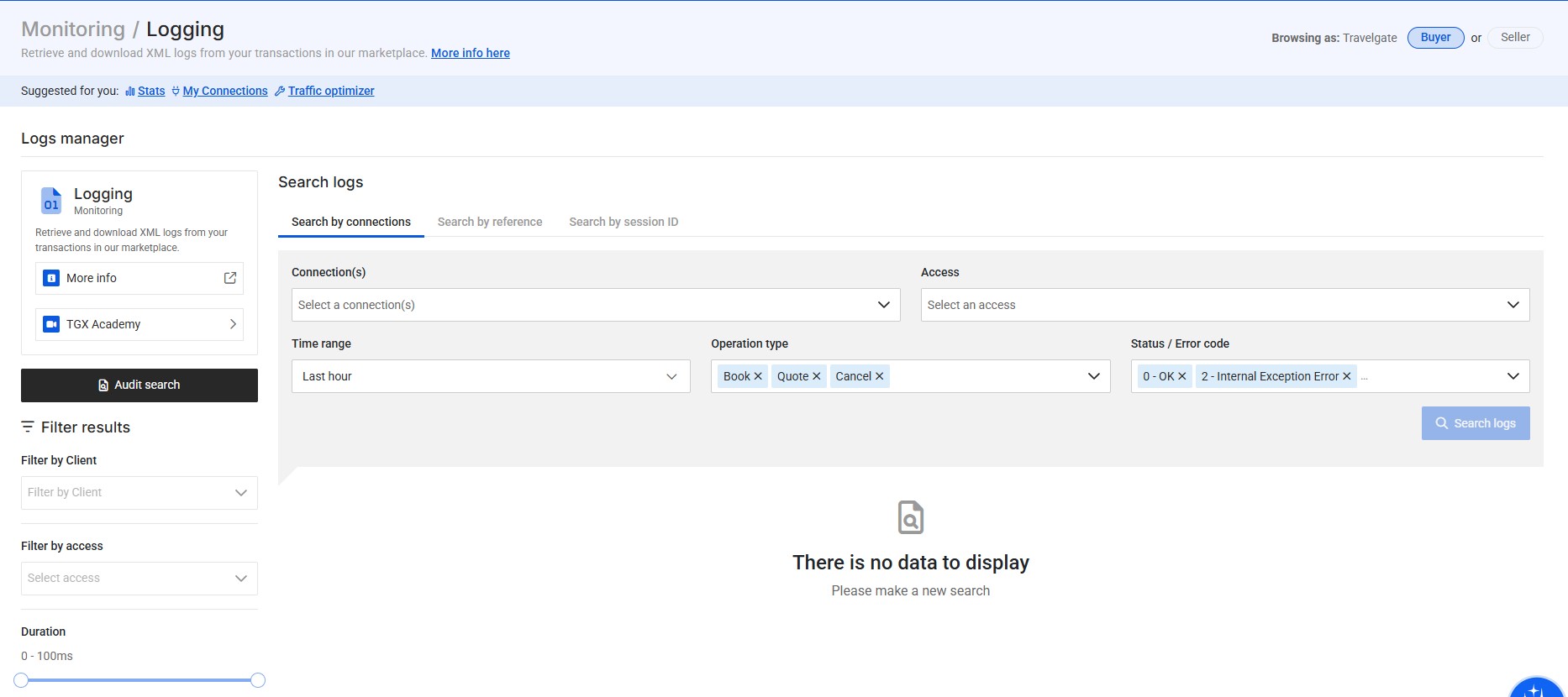
- Choose your search method: You can search by connection, reference, or session ID.
- Apply filters to refine your search:
- Time range: Up to 2 months.
- Access: Filter by HotelX Access (by Name or Code). This filter applies only to HotelX connections.
- Operation type: Search, Quote, Book, Cancel, Other (e.g. Booking Read, Booking List).
- Note: The "Search" operation type will only return results if searches have been audited first.
- Status/Error code: Select specific errors to filter results.
- Click on "Search logs" to retrieve the logs.
- Buyer connections using our Legacy API are audited at the connection level — access-level auditing is not available. This means that when retrieving logs using the Logging tool, you should not use the Access Filter, as it will return no results.
- If you're a Seller, you can check whether your Buyer is integrated via the HotelX API or the Legacy Pull Buyers API by looking for the “HotelX” label on the connection in the “My Connections” screen. If the Buyer is using the HotelX API, the “HotelX” label will appear next to the “Buyer” label.
What Information Does Logging Provide?
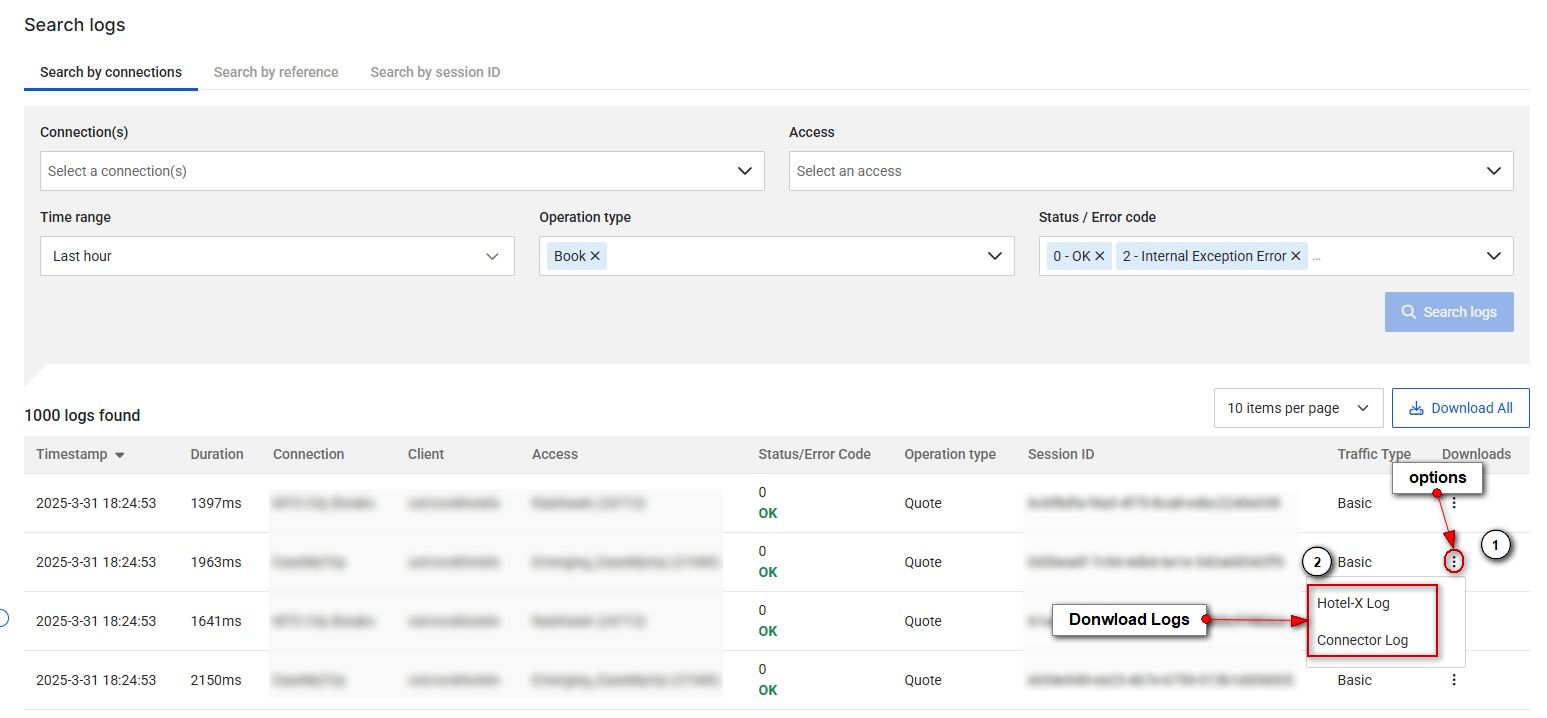
When your search returns logs, Logging will display the following details:
- Timestamp (date and time of the transaction)
- Transaction duration (at the integration level)
- Connection
- Client
- Access
- Status/Error Code
- Operation type (Search, Quote, Book, Cancel, Other)
- Session ID (unique identifier for the transaction)
- Traffic Type (Basic, Optimized, Scheduler, Speed)
- Actions: Logs available for download include HotelX Logs/Legacy Logs, and Connector Logs. For Book transactions, you can directly download the corresponding Quote logs used in that specific booking flow. Additionally, you can download all visible logs on your screen by clicking the 'Download All' button above the table.
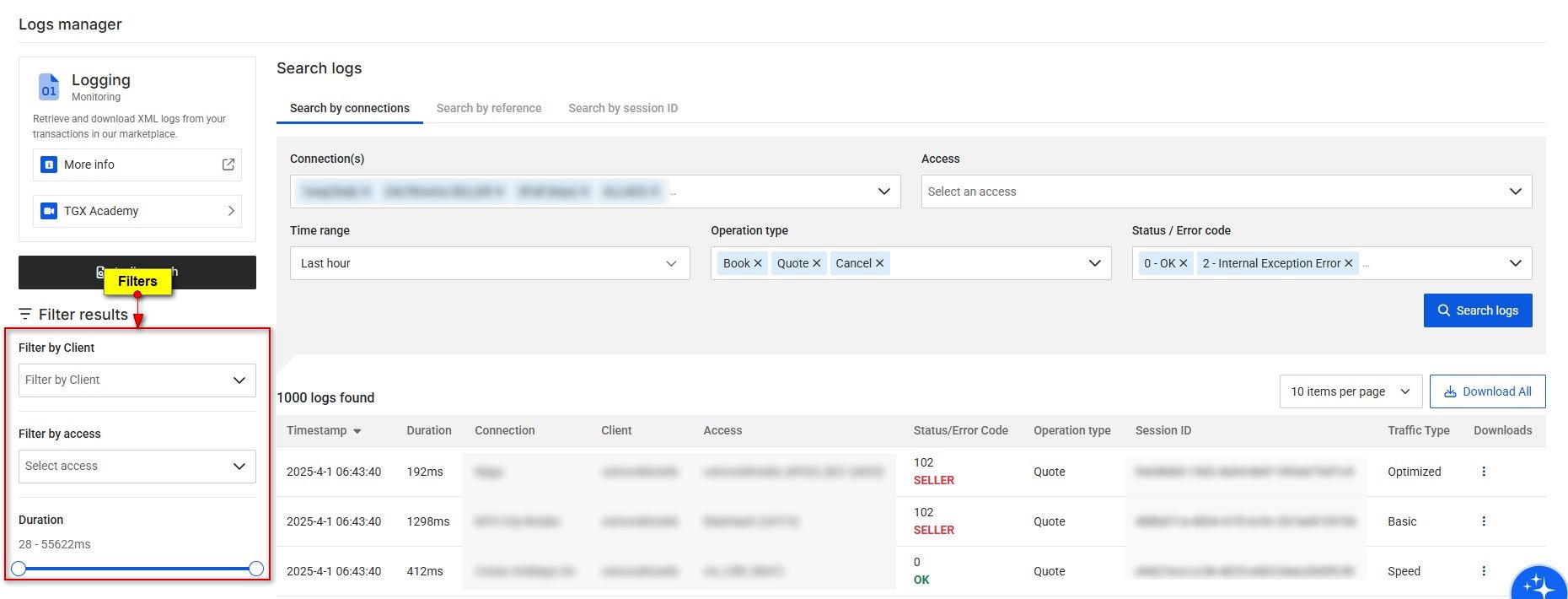
If your search returns a large number of results, use additional filters on the right to refine your search:
- Filter by Client/Supplier
- Filter by Access
- Filter by Duration
The "Status/Error Code" displayed in the Logging screen only shows whether the transaction was processed without errors—it does not reflect the actual status of a reservation. For example, a reservation may appear as OK in the Logging screen, even if its actual Book status is UNKNOWN, as long as the transaction completed without errors.
To determine the actual status of a reservation, you should perform a Booking Read operation.
Can I Download HotelX and Legacy Logs?
Yes, you can retrieve both HotelX and Legacy logs. In the Log Download options, select:
- Buyer HotelX Log to download HotelX logs.
- Buyer Legacy Log to download Legacy logs.
What is the difference between HotelX Logs, Legacy Logs, and Connector Logs?
In the Actions section, you can download different types of transaction logs:
- HotelX Logs: Transactions made by Buyers through our HotelX API.
- Legacy Logs: Transactions made by Buyers through our Legacy API.
- Connector Logs: Transactions generated through our integration when interacting directly with the Seller's API.
Connector Logs are always available because they capture all activity between our integration and the Seller. Depending on the Buyer's API, you may see either HotelX Logs or Legacy Logs, never both.
Can I Retrieve Logs from a One Step Book Operation?
Yes. You can retrieve both Quote and Book logs for a One Step Book operation.
To find them, search using one of these filters:
- Connection
- Reference
- Session ID
Why can’t I find my logs in the Logging App?
If you can't find the logs you need in the Logging App, check the following:
- Partner type: Make sure you are browsing in the correct view, Buyer or Seller, depending on the data you want to see. You can switch views using the View data of this page as: selector on the left side of the screen.
- Booking or cancellation errors: Use Search by Connections with the Time Range filter and, if possible, filter by error. Failed bookings or cancellations cannot be retrieved by client reference, supplier reference, or session ID.
- Reference filter for OK logs: The reference will not return results until the day after the booking is made. If the reference still does not return results, use the Time Range filter instead.
When to Use the Access Filter
Use the Access Filter only for HotelX Connections. If you apply it to a Legacy Connection, it will return no results even when transactions exist for that period.
To check whether a Buyer is connected via Legacy or HotelX:
- Go to Connections → My Connections.
- Filter by Buyer (Buyer card).
- Look at the Buyer Card to the right of the Buyer name and code.
- If the HotelX label appears, the Buyer uses the HotelX API.
- If the HotelX label does not appear, the Buyer uses the Legacy API. In that case, the Access Filter will not return results, so use the Time Range filter instead.
For Buyer connections through our Legacy Pull Buyers API, filtering by HotelX Access Code is not available. Instead, connections are identified through the Buyer's clientname#suppliercode relationship.
Some Buyers may be transitioning from the Legacy Pull Buyers API to the HotelX API, meaning they could have traffic on both APIs. If you're unsure, we strongly recommend reaching out to your Buyers for further details.