AIna MCP
Supercharge Your Workflow with AIna MCP
At Travelgate, we continuously enhance your support experience. As part of this effort, AIna—Travelgate's AI assistant—now includes Model Context Protocol (MCP) functionality.
With AIna's MCP server, your applications can connect directly to Travelgate Documentation, giving you access to the information you need exactly where and when you need it—without switching tools.
What Is an MCP Server?
The Model Context Protocol (MCP) is an open standard introduced by Anthropic that allows AI tools—such as ChatGPT, Claude, or Cursor—to access external APIs, databases, and systems in real time.
An MCP system is made up of three components:
-
Host
The AI application you use (for example, ChatGPT, Claude Desktop, Cursor, or VS Code). -
Client
A built-in connector that manages communication between the host and MCP servers. -
MCP Server
An external service that provides real-time data to power AI responses. In this case, the AIna MCP server connects AI tools to Travelgate Documentation.
Why Use the AIna MCP Server?
Integrating Travelgate knowledge directly into your daily workflow offers several benefits:
-
Real-time insights
Access live documentation instantly. -
Improved efficiency
Reduce context switching and “tab overload” by getting answers directly in your IDE or chat environment. -
Grounded responses
Receive accurate, platform-specific guidance for coding and troubleshooting.
This is especially useful during certification processes, where having trusted, up-to-date information inside your development environment can significantly speed up your work.
AIna MCP Configuration Guides
To access Travelgate’s Documentation MCP server (https://travelgate.mcp.kapa.ai), follow these steps:
-
Navigate to the Travelgate website (either the Portal, App or the Documentation site).
-
Click the AIna widget located at the bottom-right corner of the screen.
-
In the AIna chat window, click Use MCP (top-right corner of the chatbox).
-
Select the AI tool you want to connect (Cursor, VS Code, Claude Code, or copy the MCP URL for Claude or ChatGPT).
-
Follow the setup instructions for your selected tool. Examples are provided below.

Cursor IDE (One-Click Install)
-
Open File > Preferences > Cursor Settings.
-
Navigate to Tools & MCP and click New MCP Server.
-
Use the following configuration:
-
Name:
travelgate-docs -
Type:
streamableHttp(pre-filled) -
URL:
https://travelgate.mcp.kapa.ai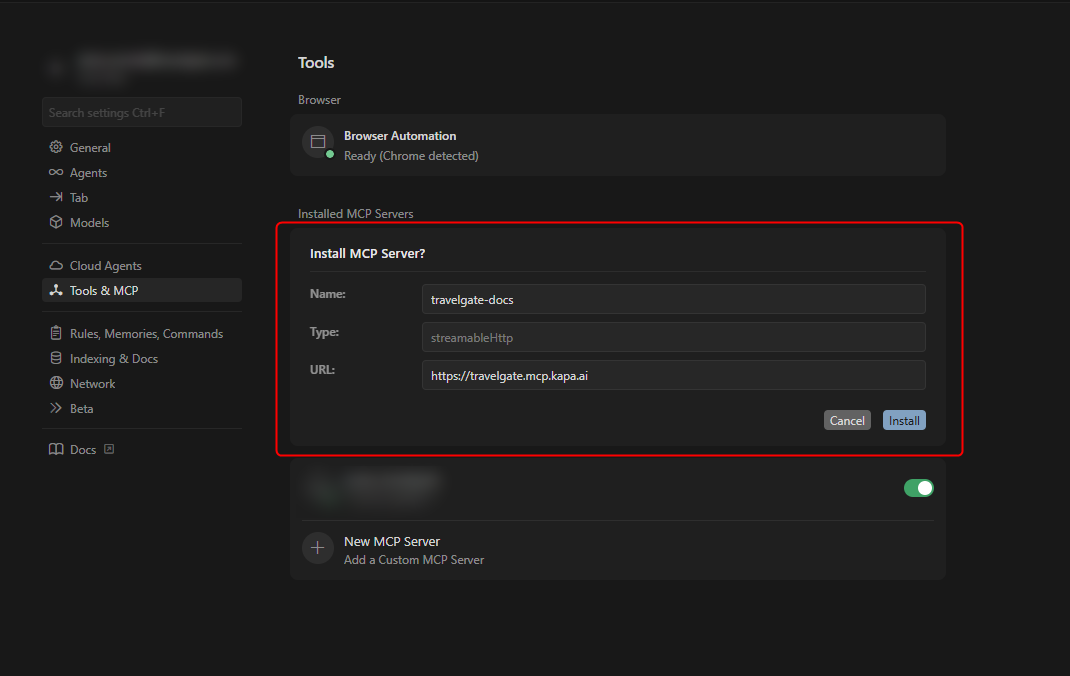
-
-
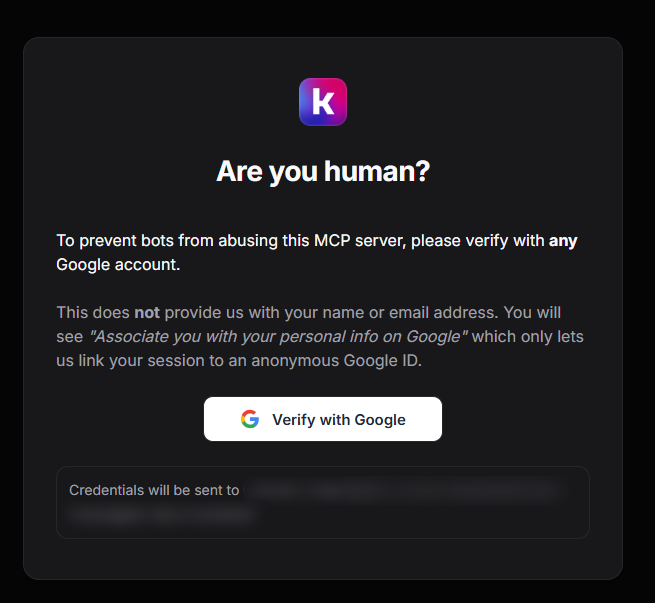
Verify your account when prompted.
-
Ensure the tool
search_travelgate_knowledge_sourcesis enabled.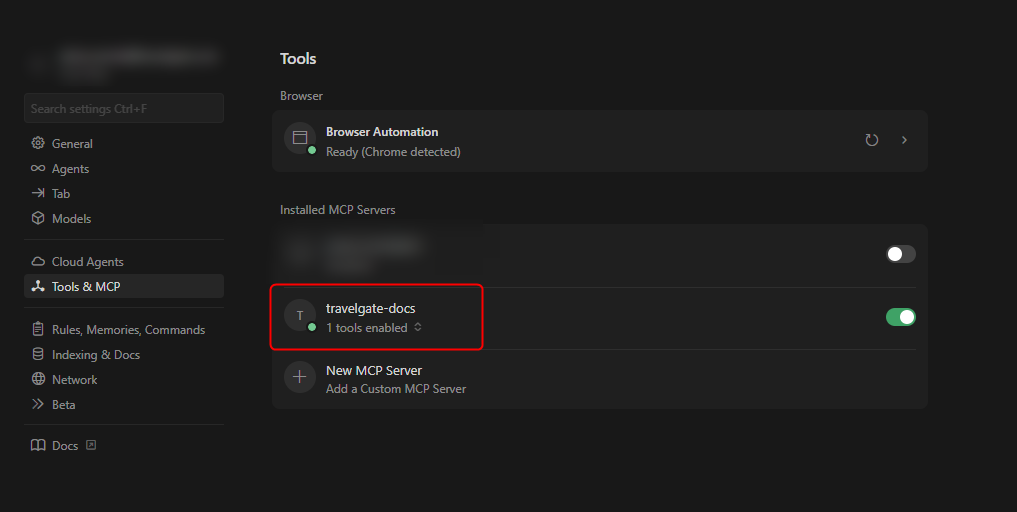
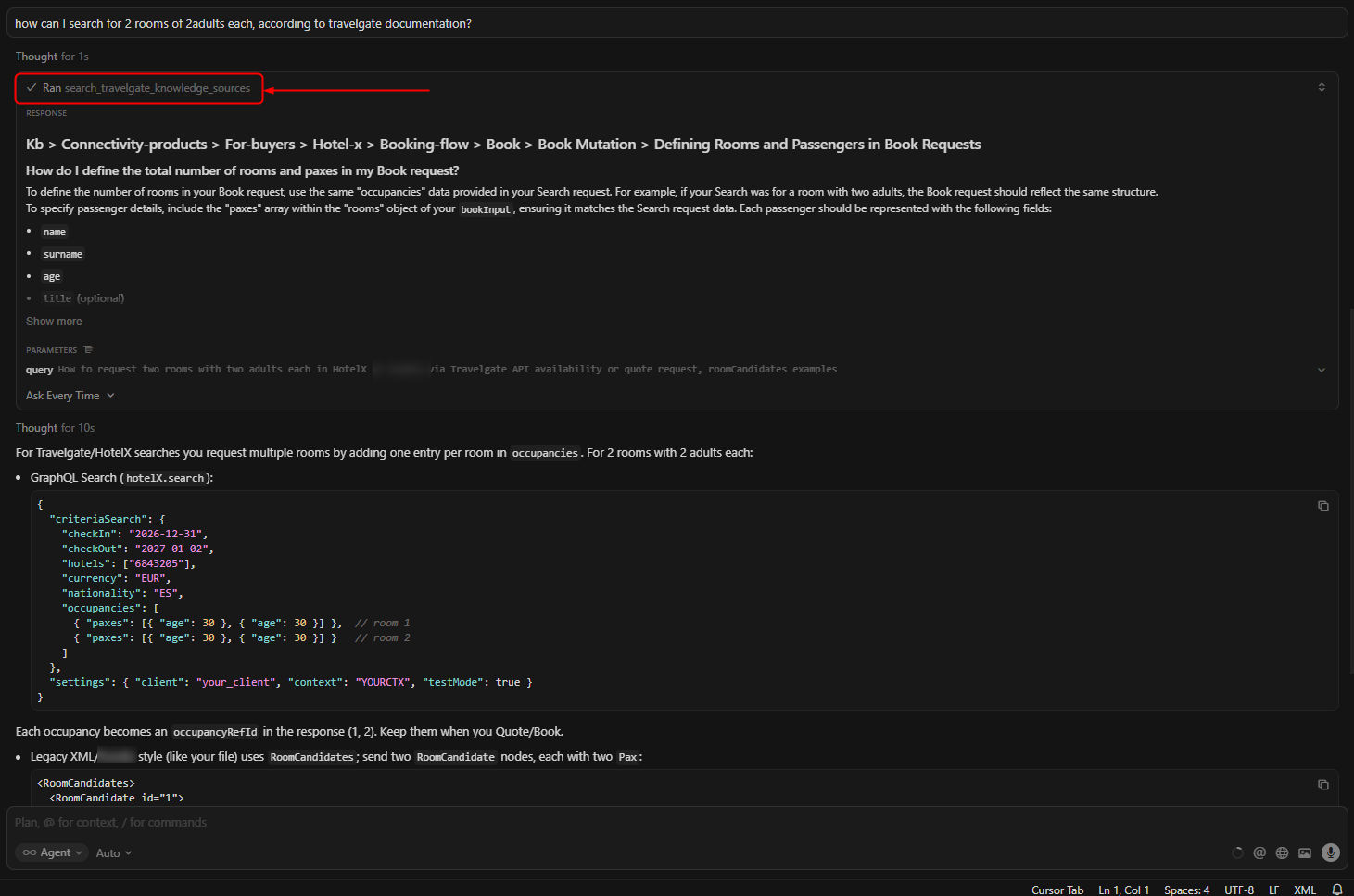
VS Code (One-Click Install)
-
Open the VS Code command palette or search bar.
-
Search for MCP: Add Server.
-
Select HTTP (HTTP or Server-Sent Events).
-
Configure the server with the following details:
-
Name:
travelgate-docs -
Type:
http -
URL:
https://travelgate.mcp.kapa.ai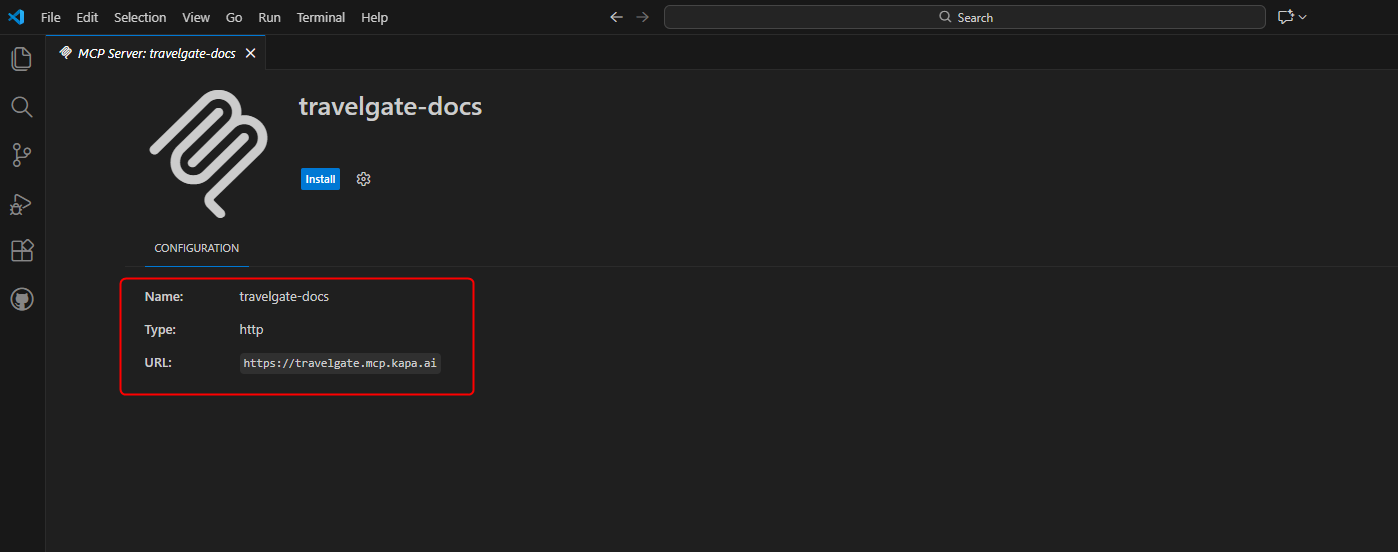
You can also add the configuration manually:
"travelgate-docs": {"type": "http","url": "https://travelgate.mcp.kapa.ai"}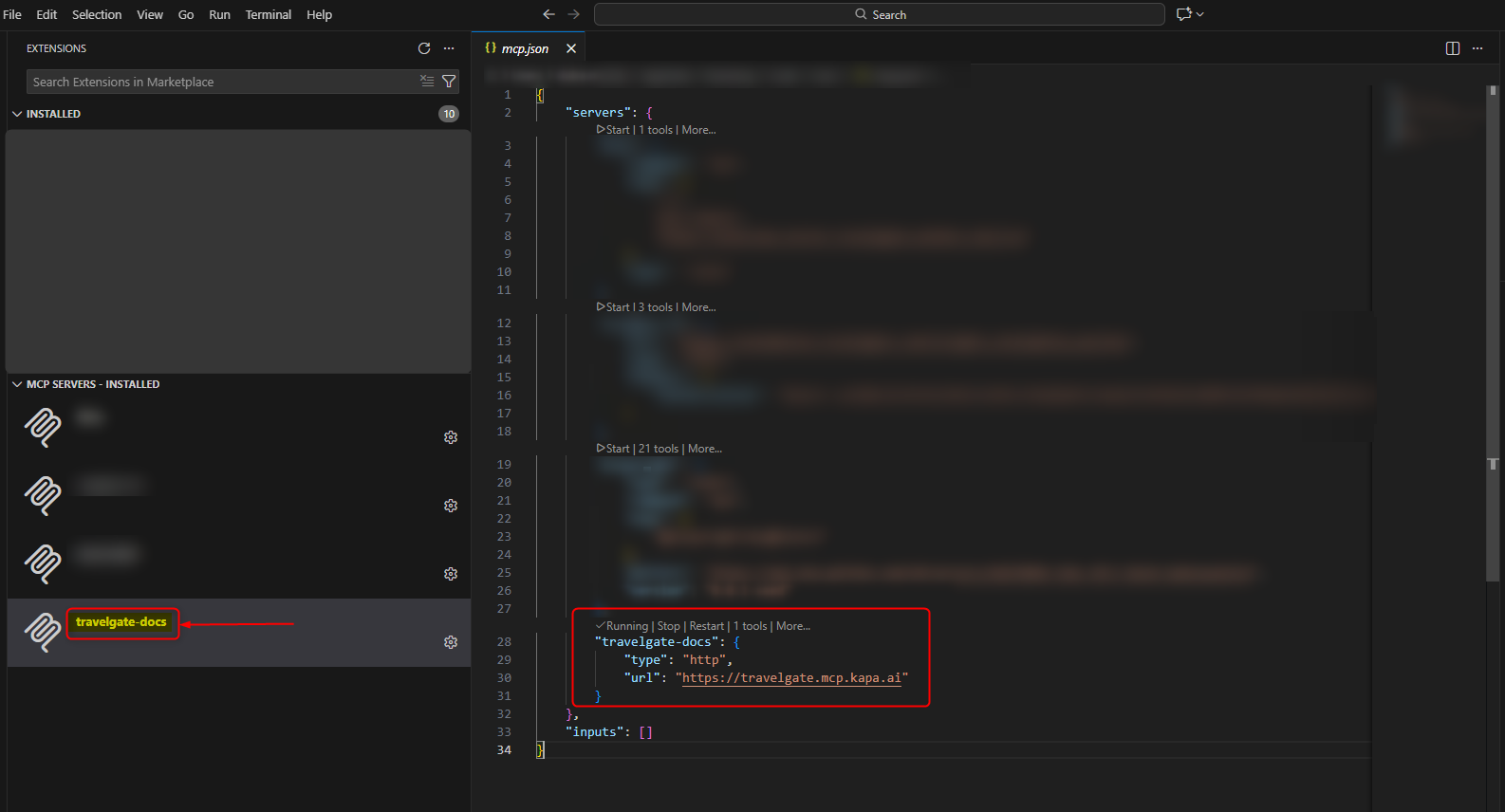
-
-
Authenticate your account when prompted.
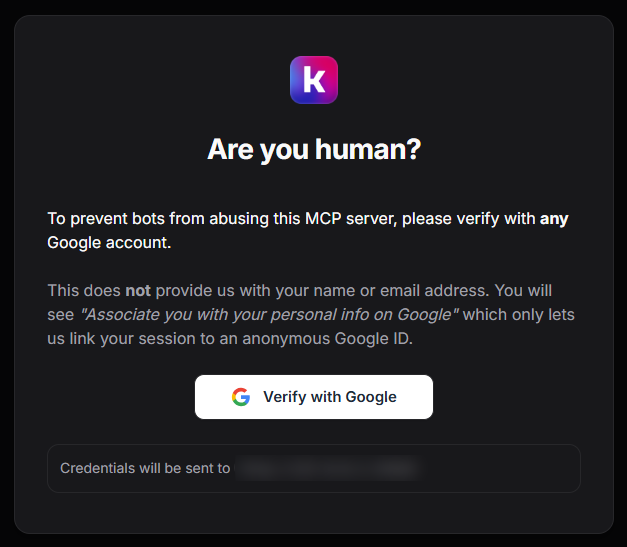
-
Ensure the tool
search_travelgate_knowledge_sourcesis enabled.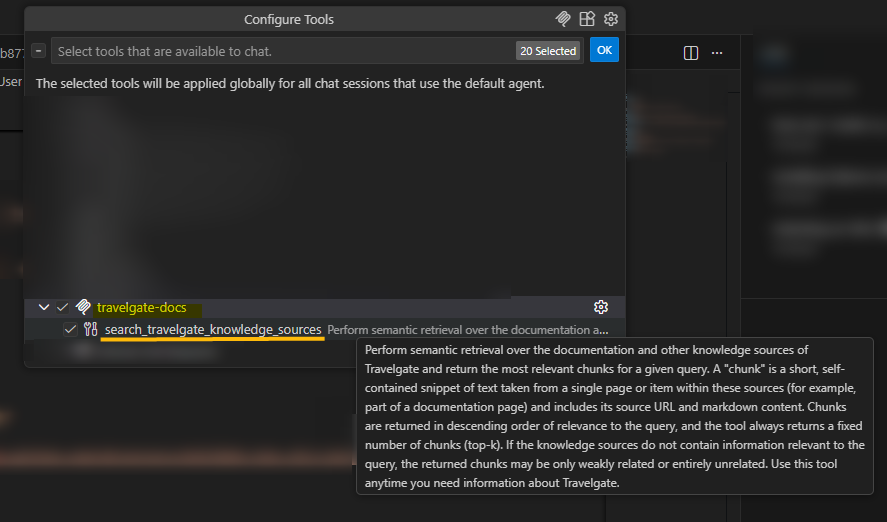
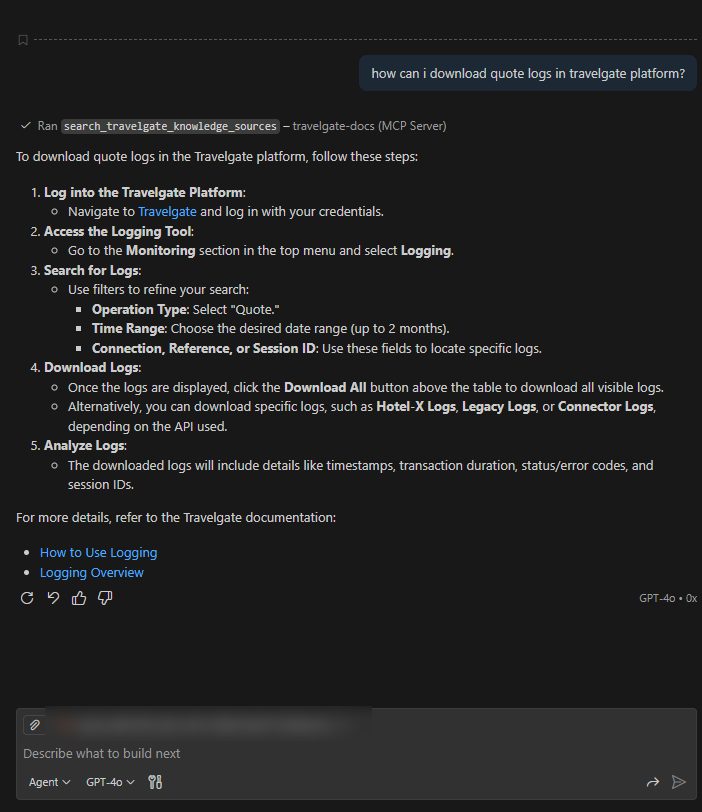
ChatGPT
1. Enable Developer Mode
-
Go to Settings > Apps > Advanced Settings.
-
Toggle Developer Mode on.
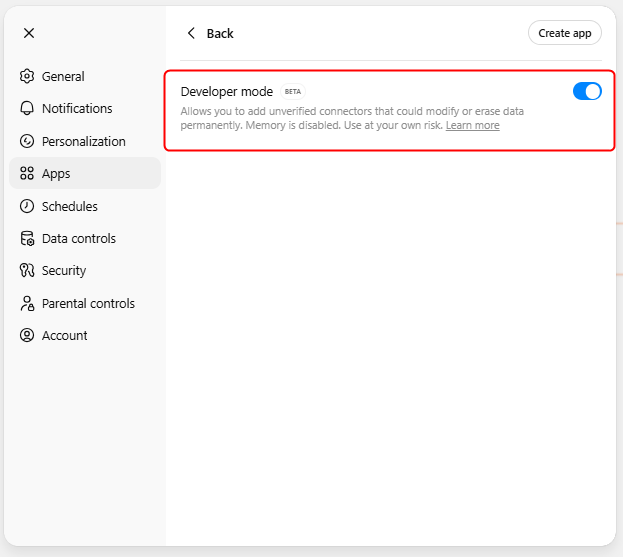
A new Create app button will appear in the top-right corner. Alternatively, return to the Apps main page and click Create app next to Advanced Settings.
2. Create a New App
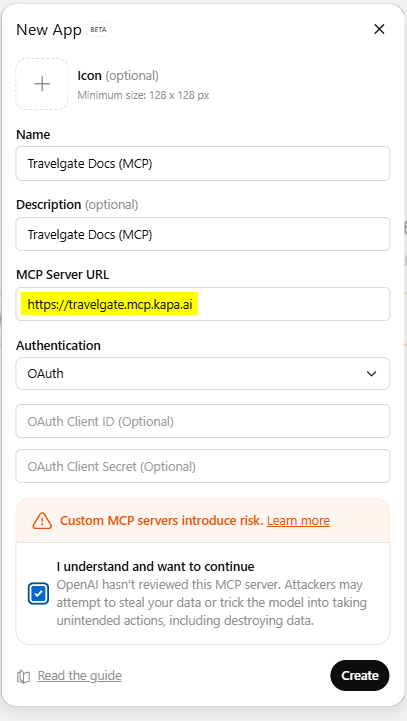
In the New App screen, fill in the following details:
-
Name: Travelgate Docs (MCP)
-
MCP Server URL: https://travelgate.mcp.kapa.ai
-
Authentication: OAuth
3. Final Step
Validate your account to complete the setup.
Tips for Getting Better Results with AIna MCP
To maximize AIna results when using Travelgate’s Documentation MCP:
- Be specific in your questions.
- Use relevant keywords.
- Add context.
- Break down complex requests into smaller, clear steps.
This approach helps AIna provide more accurate and relevant responses based on Travelgate documentation.